 Cyber
Cyber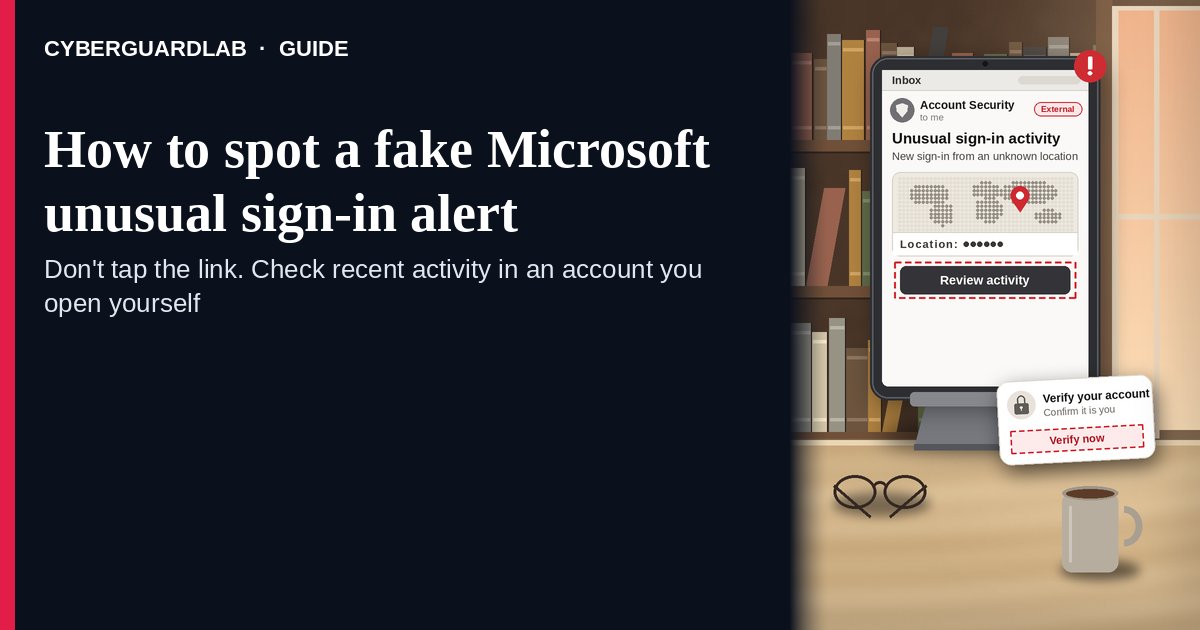
A fake Microsoft unusual sign-in alert is an email or text that copies Microsoft’s real “unusual sign-in activity” notice — a country, an IP address, a device — and then pushes you to click a button, sign in on a look-alike page, reply, or call a number to “secure” your account. Real alerts exist: Microsoft says that when it notices a sign-in from a new location or device it may send an email and an SMS alert, and that genuine Microsoft account email comes from account-security-noreply@accountprotection.microsoft.com. The safe habit is the same whether the message is real or fake: don’t use its links, type account.microsoft.com yourself, open Security → Recent activity, and answer “This wasn’t me” there if something is wrong. This page is about Microsoft-branded unusual sign-in or “someone signed in to your account” alerts only. Generic “reset your password” lures are in Fake password reset email; fake subscription bills are in Fake Microsoft 365 renewal email. CyberGuardLab is independent. Referral fees may affect product placement on other pages. Buying nothing and sticking to free verification habits is a valid outcome.
The short answer
Never sign in, reply, or call from an unexpected “unusual sign-in” message. Type account.microsoft.com yourself, check Recent activity, and choose “This wasn’t me” or change your password there if you see something you don’t recognize.
What a fake Microsoft unusual sign-in alert usually looks like
The message borrows the look of a real security notice, then turns your worry into a sign-in on the scammer’s page.
Common shapes US households report:
- “Unusual sign-in activity” email listing a country, IP address, browser, and time, with a button such as “Review recent activity” or “Secure your account” that opens a look-alike Microsoft sign-in page.
- Look-alike sender or link address. Microsoft’s own phishing guidance gives examples like micros0ft.com (a zero for the “o”) or rnicrosoft.com (“r” + “n” for “m”), and senders on free email domains that claim to be Microsoft.
- “Reply to confirm it was you” or “report this user” wording that gets you to answer an email address the scammer controls, which confirms your address is live and opens a conversation.
- Text or pop-up with a phone number for “Microsoft account security” — a call that turns into a tech-support pitch, a request for a code, or remote access.
- A code you didn’t ask for, followed by a message asking you to send it back. Microsoft notes that an unrequested verification code can mean someone is trying to sign in to your account. The code is the key; never read it to anyone.
We do not claim Microsoft never emails or texts about sign-ins. It does. The point is where you check: inside your account, opened by you, not inside the message.
Fake alert vs real Microsoft notice vs related lure
| Signal | Fake unusual sign-in alert | Real Microsoft account notice (typical) | Related lure (fake password reset) |
|---|---|---|---|
| Sender | Look-alike domain, free email address, or a display name that just says “Microsoft” | account-security-noreply@accountprotection.microsoft.com, per Microsoft Support | Any brand; “your password expires today” (see Fake password reset email) |
| Ask | Sign in through the button, reply, call, or send back a code | Review activity; you can sign in yourself any time without the email’s links | Enter old and new passwords on a linked page |
| Pressure | “Your account will be closed in 24 hours” | You choose “This was me” or “This wasn’t me” on your own schedule | “Keep your current password” button with a deadline |
| Safe next step | Ignore the message; type account.microsoft.com | Check Security → Recent activity in the account you opened | Change the password only from the site you typed |
| Related guide | This page | Microsoft Support “unusual sign-in” and “Recent activity” articles | Fake password reset email |
Microsoft also says its support agents are not allowed to send password reset links or access and change account details. A “Microsoft agent” who sends you a reset link or asks to take over your screen is not Microsoft.
How to verify a Microsoft unusual sign-in alert (US household steps)
Do this whenever an unexpected Microsoft sign-in, security, or verification message appears. You do not need a paid product to finish these steps.
- Do not click, reply, or call from the message. Leave it in your inbox for now. If a phone number is listed, don’t call it.
- Open your Microsoft account the way you trust. Type account.microsoft.com in your browser (or use a bookmark you made yourself), sign in, and go to Security. Microsoft says you can safely sign in to your account any time without clicking links in an email.
- Open Recent activity and read it calmly. If there is an Unusual activity section, expand each item. Choose This was me if you recognize it (a trip, a new phone, a new app) or This wasn’t me if you don’t; Microsoft will walk you through changing your password. If something in the regular Recent activity list isn’t yours, choose Secure your account.
- Never share a verification code or install a remote-access app because of a message or call. A code you didn’t request means someone may be trying to get in; leave it unused. If a caller asks for it, hang up. More on code theft by phone: OTP relay scam call.
- If you already typed your password on a linked page, act like the first hour matters. From account.microsoft.com, change your Microsoft password, and review your security info (phone numbers and email addresses) for anything you didn’t add. Follow Clicked a phishing link — first hour, and if the same password is used anywhere else, change it there too. If the attacker already took over your inbox, see Hacked email or social account.
- Report it and tell the household. In Outlook.com or Microsoft 365 Outlook, select the message and choose Report → Report phishing. Forward other phishing emails to reportphishing@apwg.org, forward scam texts to 7726 (SPAM), and file at ReportFraud.ftc.gov. Checklist: How to report a scam to the FTC.
Signs the alert is fake or unsafe (scan table)
Use this as a quick pass before you touch your account.
| Sign | Why it matters | What to do |
|---|---|---|
| Sender is not @accountprotection.microsoft.com | Microsoft names that domain for account notices | Treat as phishing; check your account yourself |
| Link address doesn’t match a real Microsoft domain (preview it before you tap) | Look-alike sign-in pages steal passwords | Close it; type account.microsoft.com |
| Asks you to reply, call, or send back a code | Real alerts send you to your account, not to a person | Don’t answer; never share codes |
| “Account closes in hours” deadline | Urgency stops you from checking | Slow down; Recent activity will still be there |
| “Microsoft agent” sends a reset link or wants remote access | Microsoft says its agents can’t send reset links | Hang up; refuse remote access |
| Correct sender, but you’re still unsure | Display names and look-alikes fool people | Same habit: sign in yourself and look |
Free habits that reduce the blast radius
You do not need a new subscription to lower damage if a fake Microsoft alert gets through.
- Bookmark account.microsoft.com and use that bookmark for every security check.
- Turn on two-step verification for your Microsoft account, or better, a passkey. Setup ideas: Passkeys for Google, Apple, and Microsoft.
- Keep your security info current. Microsoft sends alerts to the phone and email on file, so old numbers mean missed real alerts.
- Use a different password for your Microsoft account than for anything else; a password manager makes that practical.
- Household rule: nobody reads a code, calls a number, or installs an app because of an unexpected “Microsoft” message.
- Optional antivirus or web filtering is a separate layer after a bad click; it does not replace typing the address yourself. Built-in Microsoft Defender plus those habits is enough for many households.
What this page is not
This page is not a Microsoft work or school (Entra ID) admin guide, and not a recovery walkthrough for an account you can no longer open.
It does not claim CyberGuardLab lab scores or “#1 anti-phishing” ranks. It does not tell you to ignore real alerts — it tells you to check them inside your account. It is not the subscription-bill guide (see Fake Microsoft 365 renewal email) and not the generic password-reset guide (see Fake password reset email). For the Google version of this check, see Google unknown device logins. It is not the Instagram version of the same fake login alert (see Fake Instagram login alert), and not meeting-invite phishing that copies Microsoft Teams (see Fake Microsoft Teams meeting invite).
If you decide a paid extra is a real job
Most households can handle fake Microsoft alerts with the free steps above. Open a paid page only if you already named a job — for example broader web filtering, cross-device AV after a remote-access install, or identity alerts after you gave a scammer personal data — and you will actually use it.
- PC / Mac suite with phishing and web protections many households already compare: Norton plans (paid link; confirm renewal price).
- Independent-test–oriented suite option: Bitdefender plans (paid link).
- Household suite shopping starting point: TotalAV plans (paid link; confirm renewal).
- Multi-device bill under one vendor: McAfee plans (paid link; confirm device limit).
- Another suite path some homes already use: Avast plans (paid link).
Buying nothing beyond free type-it-yourself habits is still valid. Paid links above are on-site only.
FAQ
Does Microsoft really send unusual sign-in alerts?
Yes. Microsoft Support says that when it notices a sign-in attempt from a new location or device, it may send an email and an SMS alert, and that legitimate Microsoft account email comes from account-security-noreply@accountprotection.microsoft.com. Even so, check by signing in at account.microsoft.com yourself rather than using the message.
The email came from the right Microsoft address. Is it safe to click?
The safest habit is still to skip the links. Type account.microsoft.com, open Security → Recent activity, and look there. If the alert was real, the same activity will be waiting for you.
I got a Microsoft verification code I never asked for. What does it mean?
Microsoft says an unrequested code can mean someone is trying to sign in to your account, or someone typed the wrong email or phone by mistake. Don’t share it. Check Recent activity and change your password if anything looks wrong.
I entered my password on the page from the email. What should I do first?
Type account.microsoft.com, change your password, check that your security phone numbers and email addresses are still yours, and choose “This wasn’t me” on any activity you don’t recognize. Then follow Clicked a phishing link — first hour.
How do I report a fake Microsoft alert?
In Outlook.com or Microsoft 365 Outlook, use Report → Report phishing. Otherwise forward the email to reportphishing@apwg.org, forward texts to 7726 (SPAM), and file at ReportFraud.ftc.gov.
Do I need paid antivirus to spot these alerts?
No. Spotting is a habit: ignore the message, sign in yourself, never share codes. Microsoft Defender plus those habits is enough for many households. Antivirus can be an optional layer after a bad click or install; it does not replace that habit.