 Cyber
Cyber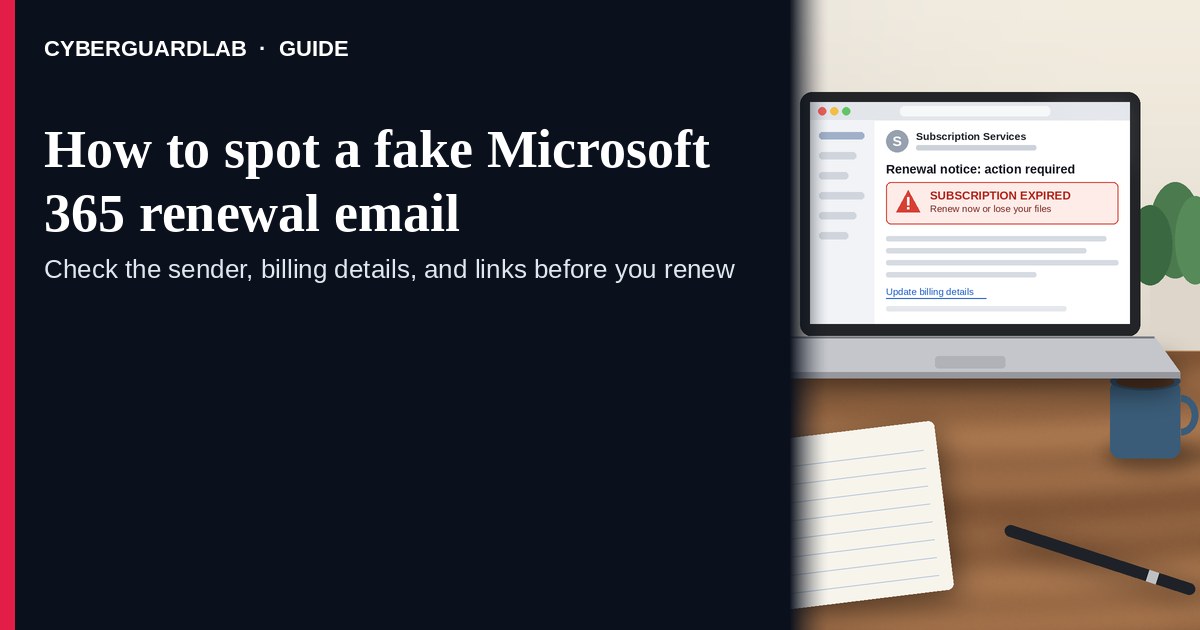
A fake Microsoft 365 renewal email (or text, or cold call) is designed to scare you into paying a scammer or giving them remote access to your PC. Microsoft’s own phishing guidance is clear: treat urgent threats, mismatched domains, and unexpected payment or support requests as red flags, and do not trust links or phone numbers inside the message. If you need to check a real subscription, open a browser yourself and go to account.microsoft.com or the official Microsoft 365 / Microsoft account app — never use the email’s “Renew now” button or a number printed in the body. This pattern overlaps the tech support scam phone call playbook: fake urgency, fake Microsoft branding, then payment or remote control. CyberGuardLab is independent. Referral fees may affect product placement on other pages. Buying nothing and sticking to free account habits is a valid outcome.
The short answer
If a Microsoft 365 “renewal” message surprises you, ignore the link and the phone number; verify billing only at account.microsoft.com or the official app, and hang up on anyone who asks for remote access or gift cards.
What a fake renewal usually looks like
Scammers copy Microsoft’s look: logos, invoice language, and a countdown clock. The job is not to sell you Office — it is to get money or control of the device.
Common shapes US households report:
- Unexpected “subscription expired” email with a “Renew in 24 hours or lose OneDrive / Outlook / Teams” threat.
- Invoice attachment or PDF that asks you to “confirm payment” on a look-alike site.
- Cold call or voicemail claiming Microsoft detected a failed renewal and needs a card number “to keep Windows licensed.”
- Text or Teams/chat ping with a short link to “fix billing.”
- Follow-up after you clicked — a caller who already has your name and insists you install a remote-support tool.
Microsoft’s phishing page lists the usual tells: urgent action or threats, awkward grammar, mismatched or misspelled domains (for example a Gmail sender claiming to be Microsoft, or micros0ft-style tricks), and links that do not match the official site when you hover or long-press. Outlook may also mark a sender as unverified; that is a reason to slow down, not to call the number in the message.
A real Microsoft account security notification is a different product. Microsoft documents that account-team security mail often comes from domains such as @accountprotection.microsoft.com, and even then the safe habit is the same: open account.microsoft.com yourself and review Recent activity — do not follow a link you did not expect. Scammers spoof display names. A pretty From line is not proof.
Renewal email vs tech-support call
The renewal lure and the tech-support scam are often the same crew with different opening lines.
| Signal | Fake renewal email / text | Tech-support style call |
|---|---|---|
| Opening hook | “Your Microsoft 365 renews today — pay or lose access.” | “Windows / Microsoft detected a virus — stay on the line.” |
| Ask | Card payment on a fake site, or a call-back number. | Remote access tool, then card, gift cards, or crypto. |
| Pressure | Countdown, “account locked,” fake invoice ID. | Scare screens, “federal crime,” “do not hang up.” |
| Safe next step | Close the mail. Sign in only at account.microsoft.com. | Hang up. Use official Microsoft Support paths if you still need help. |
| Related guide | Fake password reset email | Tech support scam phone call |
If the message is about a password reset you did not request, treat it like the password-reset guide, not like a billing problem. If someone is already on the phone asking to share your screen, stop — that is the tech-support pattern, even if they opened with “renewal.”
How to verify a real Microsoft 365 renewal (US household steps)
Do this when any renewal claim appears. You do not need a paid product to finish these steps.
- Do not click, call, or open the attachment. Close the email or text. Do not reply. Do not call any number printed in the message — Microsoft’s support articles and phishing guidance treat unexpected payment and urgent links as high risk.
- Open a browser you trust and type the address yourself. Go to https://account.microsoft.com/ or open the official Microsoft account / Microsoft 365 app from your device’s app store history — not from a link in the email. Sign in with your usual Microsoft account.
- Check Services & subscriptions (or billing) and Recent activity. Confirm whether you actually have Microsoft 365, when it renews, and which payment method is on file. If nothing is due, the email was noise or a scam. If something looks wrong (unknown device, new forwarding, password change you did not make), use Microsoft’s secure-account flow: change the password, review recovery email/phone, and turn on two-step verification. Our household walk-through is Turn on 2FA for Gmail, Apple, and bank accounts — apply the same habit to the Microsoft account.
- Pay only inside the signed-in Microsoft billing pages. If a real renewal is due, complete it there. Do not type a card on a page that opened from the email. Do not pay with gift cards, wire, crypto, or a “support agent” who stays on the line.
- If you already clicked or typed a password, treat the first hour as incident response. Change the Microsoft password from a clean device if you can, revoke unfamiliar sessions, check recovery contacts, and follow Clicked a phishing link — first hour. Report the message to Microsoft using Outlook’s Report phishing (when available) or Microsoft’s phishing report paths, and report the scam to the FTC at ReportFraud.ftc.gov. Our checklist for that report is How to report a scam to the FTC.
- Tell the rest of the household. Shared PCs and shared Microsoft family accounts mean one person’s click can become everyone’s problem. Agree that nobody calls “Microsoft” from a number in an email.
Signs the message is fake (scan table)
Use this as a quick pass before you spend money or time.
| Sign | Why it matters | What to do |
|---|---|---|
| You did not buy Microsoft 365, or you know it auto-renews on a card you recognize | Unexpected billing pressure is a classic lure | Verify only at account.microsoft.com |
| Sender domain is not a Microsoft domain, or Outlook marks it unverified | Display names are easy to fake | Ignore the message; check the real account |
| Link goes to a look-alike spelling or a random URL shortener | Credential and card theft | Never click; type the official URL |
| Asks for remote access, AnyDesk/TeamViewer, or “support tool” | Tech-support takeover | Hang up / close; see tech-support guide |
| Payment by gift card, crypto, wire, or cash app | Microsoft does not collect renewal that way from a cold email | Stop; report at ReportFraud.ftc.gov |
| Threatens lawsuits, ICE, FBI, or immediate account wipe for non-payment | Fear used to skip verification | End the contact; verify on official sites only |
Free habits that reduce the blast radius
You do not need a new subscription to lower damage if a fake renewal gets through.
- Unique password for the Microsoft account, stored in a password manager you already trust.
- Two-step verification / authenticator app on that account (see the 2FA guide linked above).
- Household rule: billing changes only after a self-typed visit to account.microsoft.com.
- Keep Windows Update and browser updates on; they are not a cure for phishing, but they limit what malware can do after a bad click.
- If you use a third-party antivirus suite for web filtering or extra phishing blocks, that is optional — not required to spot a fake renewal.
What this page is not
This page is not a Microsoft 365 pricing review, not a coupon page, and not a how-to for stealing subscriptions.
It does not claim CyberGuardLab lab scores or “#1 anti-phishing” ranks. It is not legal advice. It does not tell you to ignore a real unpaid invoice you can see inside your signed-in Microsoft billing page — it tells you to verify there, not in the email. Official recovery and reporting stay on Microsoft’s support pages, ReportFraud.ftc.gov, and IdentityTheft.gov if personal data was stolen.
If you decide a paid extra is a real job
Most households can handle fake renewal mail with the free steps above. Open a paid page only if you already named a job — for example broader web filtering, cross-device AV, or identity alerts after you gave a scammer personal data — and you will actually use it.
- PC / Mac suite with phishing and web protections many households already compare: Norton plans (paid link; confirm renewal price).
- Independent-test–oriented suite option: Bitdefender plans (paid link).
- Household suite shopping starting point: TotalAV plans (paid link; confirm renewal).
- Multi-device bill under one vendor: McAfee plans (paid link; confirm device limit).
- Another suite path some homes already use: Avast plans (paid link).
Buying nothing beyond free Microsoft account hygiene is still valid. Paid links above are on-site only.
FAQ
Did Microsoft email me that my 365 subscription expires today?
Maybe — but you cannot trust the email alone. Sign in only at account.microsoft.com (or the official app) and read Services & subscriptions. If nothing is due, treat the message as phishing or spam.
The email has a Microsoft logo and an invoice number. Is that enough?
No. Logos and invoice formatting are trivial to copy. Microsoft’s phishing guidance focuses on urgency, domain mismatch, and suspicious links — not on whether a logo looks polished.
Someone called about a failed Microsoft renewal and wants remote access. What now?
Hang up. That is the tech-support scam pattern. Do not install remote tools. Verify billing yourself at account.microsoft.com, then read Tech support scam phone call.
I already entered my password on a fake renewal page. What should I do first?
Change the Microsoft account password from a device you trust, review Recent activity and recovery contacts, turn on two-step verification, and follow Clicked a phishing link — first hour. Report at ReportFraud.ftc.gov.
How do I report a fake Microsoft renewal email?
Use Outlook’s Report phishing when available, Microsoft’s phishing report options, and ReportFraud.ftc.gov. Steps for the FTC side are in How to report a scam to the FTC.
Do I need paid antivirus to spot these emails?
No. Spotting is a verification habit: ignore the link, check the real account, hang up on remote-access asks. Antivirus can be a separate optional layer for malware after a bad click; it does not replace that habit.