 Cyber
Cyber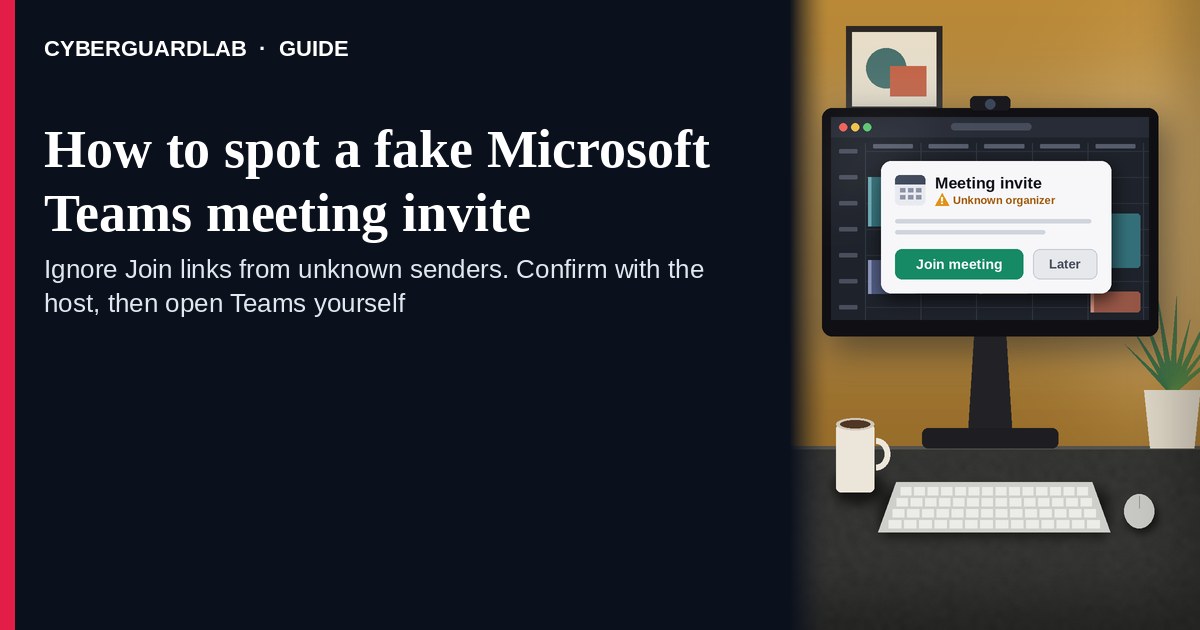
A fake Microsoft Teams meeting invite is an unexpected email, calendar item, chat ping, or SMS that claims you must “Join Microsoft Teams Meeting,” “Accept invite,” or “enter the waiting room” through a cold link. Real Teams meetings are joined from the official Microsoft Teams app or a teams.microsoft.com / Microsoft 365 session you open yourself (free / personal Teams meeting links use teams.live.com), or from an invite you already expected from a known host. Microsoft documents Teams spam / phishing guidance for external chats, impersonation on Teams calling, and general phishing protection. This page is about Teams calendar / join-link phishing only — not Microsoft 365 billing or renewal. The Zoom cousin is Fake Zoom meeting invite phishing. Billing / renewal panic is covered in Fake Microsoft 365 renewal scam. Related first-hour steps: Clicked a phishing link — first hour. CyberGuardLab is independent. Referral fees may affect product placement on other pages. Buying nothing and sticking to free verification habits is a valid outcome.
The short answer
Ignore Join links in unexpected Teams invites from unknown senders; confirm the meeting with the host through a channel you already trust; join only inside the official Microsoft Teams app or a Microsoft session you open yourself — never type work or personal passwords on a cold invite page.
What a fake Teams meeting invite usually looks like
Scammers copy Teams calendar language: “Microsoft Teams Meeting,” “Join the meeting now,” “Click here to join,” “Passcode,” or “Waiting room.” The job is a look-alike Microsoft / Teams login page, a malware download dressed as a “Teams client update,” or both.
Common shapes US households report:
- Unexpected calendar invite or email from a stranger, a misspelled coworker name, or a “HR / IT / vendor” address you do not recognize.
- Join URL that is not teams.microsoft.com, teams.live.com (free / personal Teams), or another Microsoft domain you recognize — shortener, random form host, or look-alike domain that opens a fake Microsoft login.
- Teams chat or calling impersonation that pastes a cold Join link or asks you to “verify” with a password or code. Microsoft publishes guidance on external-chat spam/phishing and impersonation attempts on Teams calling.
- Attachment labeled “agenda,” “Teams_Meeting,” or “client update” that asks you to enable macros or install software.
- Urgent “join in 5 minutes — board / interview / school meeting” pressure so you skip checking the host. Related first-hour steps after a bad tap: Clicked a phishing link — first hour.
FTC phishing guidance: do not click links or open unexpected attachments; if you think it might be real, contact the person or company with a channel you know is real; report at ReportFraud.ftc.gov.
We do not claim Microsoft “never sends Teams invites.” Teams and calendar tools send real invites every day. The safe habit is always the same: unexpected invite from an unknown sender → confirm the host first → join only inside the official Teams app or a Microsoft session you start yourself.
Fake Teams invite vs real invite vs Zoom / M365 renewal phishing
| Signal | Fake Teams meeting invite | Real Teams / calendar invite (typical) | Related phishing (Zoom join or M365 renewal) |
|---|---|---|---|
| Opening hook | “Join Microsoft Teams Meeting” from a stranger or odd look-alike name. | Meeting you already expected from a known host / school / workplace. | Zoom “Join Meeting,” or “Renew Microsoft 365 / pay invoice” billing panic. |
| Ask | Cold Join link to a non-Microsoft host, fake Microsoft login, or odd attachment. | Join inside Teams app / Microsoft session; host details match someone you know. | Cold Zoom Join, or card / password on a fake renewal page. |
| Pressure | “Starts in 5 minutes,” interview, payroll, or school urgency. | Normal calendar timing; you can confirm the host first. | Meeting-in-5-minutes (Zoom) or subscription lock / renewal countdown (M365). |
| Safe next step | Do not Join. Confirm host on a known channel; open Teams yourself. | Join only from official Teams after host check if anything feels off. | See Zoom invite phishing or M365 renewal guides. |
| Related guide | This page | Official Teams app / Microsoft account typed by you | Zoom meeting invite phishing · Fake Microsoft 365 renewal |
If the page after Join asks for your work email password, Microsoft password, or a “Teams account password” you do not normally use that way, stop — that is credential theft dressed as a meeting. If the message is about billing / renewing Microsoft 365, not joining a meeting, use the Fake Microsoft 365 renewal scam guide instead.
How to verify a Microsoft Teams meeting invite (US household steps)
Do this when any unexpected Teams invite or Join email / chat appears. You do not need a paid product to finish these steps.
- Do not tap Join, open the attachment, or enter a password on a page that arrived from the invite. Close the email, calendar item, or chat if the sender is unknown or the topic is surprising.
- Confirm the meeting with the host through a channel you already trust. Call, text, or message the person using a number or chat thread you already have — not a Reply-All on the suspicious invite, and not a cold Teams call from a look-alike name.
- Join only inside the official Microsoft Teams app or a Microsoft session you start yourself. Open Teams from your home screen or type a Microsoft / Teams URL you know; find the meeting under your normal signed-in account or enter a meeting ID the confirmed host gave you.
- Never enter work or personal passwords on a cold invite page. Real Teams joins do not need your Microsoft, Google, or email password on a random form that appeared from an unexpected invite. Watch for look-alike domains and “Sign in with Microsoft” traps.
- If you already tapped, typed a password, or installed something from the invite, treat the first hour as incident response. Change the password you typed from a device and site you trust; turn on 2FA if it was off; tell work IT if it was a work account. Follow Clicked a phishing link — first hour. Report at ReportFraud.ftc.gov; if identity data was stolen, use IdentityTheft.gov.
- Report the invite and tell the household / team. Mark the email as phishing / junk; delete the calendar item if it is fake; file at ReportFraud.ftc.gov. Agree that nobody joins unexpected Teams links from strangers without a host check. Checklist: How to report a scam to the FTC.
Signs the invite is fake or unsafe (scan table)
Use this as a quick pass before you Join or type a password.
| Sign | Why it matters | What to do |
|---|---|---|
| Sender is unknown, misspelled, or a random free-mail address | Easy to spoof display names | Confirm host on a known channel first |
| Join URL is not a Microsoft / Teams domain you recognize (shortener, .xyz, form host) | Phishing or malware page | Never tap; open official Teams yourself |
| Page asks for Microsoft / email password to “enter the meeting” | Credential harvest | Stop; change that password if you typed it |
| Attachment demands macros, a “Teams update,” or a random installer | Malware risk | Do not open; delete; scan if already opened |
| Urgent interview / payroll / school meeting you never scheduled | Fear used to skip verification | Slow down; confirm with the real host |
| You already Joined once and typed a password | Account takeover and follow-up phishing | Run first-hour steps; tell IT if work-related |
Free habits that reduce the blast radius
You do not need a new subscription to lower damage if a fake Teams invite gets through.
- Install Microsoft Teams only from Microsoft or your device’s official app store; join from that app.
- Household / team rule: unexpected Join link → confirm host first → never password-paste on cold pages.
- Strong unique passwords + 2FA on email and work accounts limit what a stolen invite password can unlock.
- Mark phishing in your mailbox; enable spam filtering when available; treat unexpected external Teams chats carefully per Microsoft’s spam/phishing guidance.
- Optional antivirus / web filtering is a separate layer after a bad tap; it does not replace host confirmation and official-app joins. Built-in Microsoft Defender plus those habits is enough for many households.
What this page is not
This page is not a Teams product review, not IT policy for a specific employer, and not legal advice about a workplace incident.
It does not claim CyberGuardLab lab scores or “#1 anti-phishing” ranks. It does not tell you to skip real meetings you already scheduled with known hosts — it tells you to verify unexpected invites and join only inside official Teams. It is not the Zoom join-invite guide (see Fake Zoom meeting invite phishing) and not the Microsoft 365 billing/renewal guide (see Fake Microsoft 365 renewal scam). Official recovery and reporting stay with your IT team (for work accounts), Microsoft account security, ReportFraud.ftc.gov, and IdentityTheft.gov if personal data was stolen.
If you decide a paid extra is a real job
Most households can handle fake Teams invites with the free steps above. Open a paid page only if you already named a job — for example broader web filtering, cross-device AV, or identity alerts after you gave a scammer personal data — and you will actually use it.
- PC / Mac suite with phishing and web protections many households already compare: Norton plans (paid link; confirm renewal price).
- Independent-test–oriented suite option: Bitdefender plans (paid link).
- Household suite shopping starting point: TotalAV plans (paid link; confirm renewal).
- Multi-device bill under one vendor: McAfee plans (paid link; confirm device limit).
- Another suite path some homes already use: Avast plans (paid link).
Buying nothing beyond free official-app verification habits is still valid. Paid links above are on-site only.
FAQ
Does Microsoft really send Teams meeting invite emails?
Yes. Teams and calendar tools send real invites. That is why the safe test is not “Microsoft never emails,” but “I only join unexpected meetings after I confirm the host and open official Teams myself.”
The invite has a meeting ID and passcode. Is that enough?
No. Meeting IDs and passcodes are easy to invent or reuse. Trust a host you can confirm on a known channel, then join inside the official Teams app or a Microsoft session you start yourself.
I already entered my work password on the Join page. What should I do first?
Change that password from a trusted device and official site. Tell work IT if it was a work account. Turn on 2FA if it was off. Follow Clicked a phishing link — first hour. Report at ReportFraud.ftc.gov.
How is this different from a fake Zoom invite or a Microsoft 365 renewal scam?
This page is Teams meeting join / calendar invite phishing only. Fake Zoom meeting invite phishing covers the Zoom Join costume. Fake Microsoft 365 renewal scam covers billing / renewal / “pay or lose access” — not meeting Join links.
How do I report a fake Teams meeting invite?
Mark the email as phishing / junk, delete the fake calendar item, and file at ReportFraud.ftc.gov. Steps for the FTC side are in How to report a scam to the FTC.
Do I need paid antivirus to spot these invites?
No. Spotting is a verification habit: confirm the host, join only inside official Teams, never type passwords on a cold invite page. Microsoft Defender plus those habits is enough for many households. Antivirus can be a separate optional layer for malware after a bad attachment; it does not replace that habit.