 Cyber
Cyber
A repair shop installed Avast. Or McAfee expired and Windows Security now complains. You can uninstall the leftover and go back to Microsoft Defender Antivirus on supported Windows 10 and Windows 11. That is a normal end state. It is not a claim that Avast, McAfee, or Norton is “useless.” It is a claim that you do not owe a shop a renewal to have a scanner. Two real-time products on one PC — especially a 4 GB laptop — is a common reason the machine feels “full of viruses.” Demand specs first (7 hardware signs). Buying nothing after you return to Defender is valid.
1. When uninstalling the extra suite is the right move
Uninstall if you are not paying, you did not ask the shop to leave it, or Task Manager shows two security products plus a fan that never sits down. Keep it only if you are using a specific extra — identity monitoring, a family device count, a Wi-Fi inspector — and you confirmed the plan. Those extras are listed as jobs in 5 antivirus extras worth paying for in 2026.
2. Uninstall from Settings → Apps
Open Settings → Apps → Installed apps. Find Avast, McAfee, Norton, or the trial name. Select Uninstall. Restart when asked. If Windows will not remove it, use the vendor’s official removal tool from their support site — not a third-party “force uninstall” ad. We do not invent those tool URLs here; start from the vendor’s support page you already trust, or from Microsoft’s remove-malware help if the leftover is behaving like malware rather than a normal app.
3. Check for leftover trays and trials
After the restart, look at the system tray and Startup apps in Task Manager. A “McAfee WebAdvisor” or Avast helper can survive the main uninstall. Remove those the same way. One scanner should remain: Windows Security.
4. Turn Microsoft Defender back on
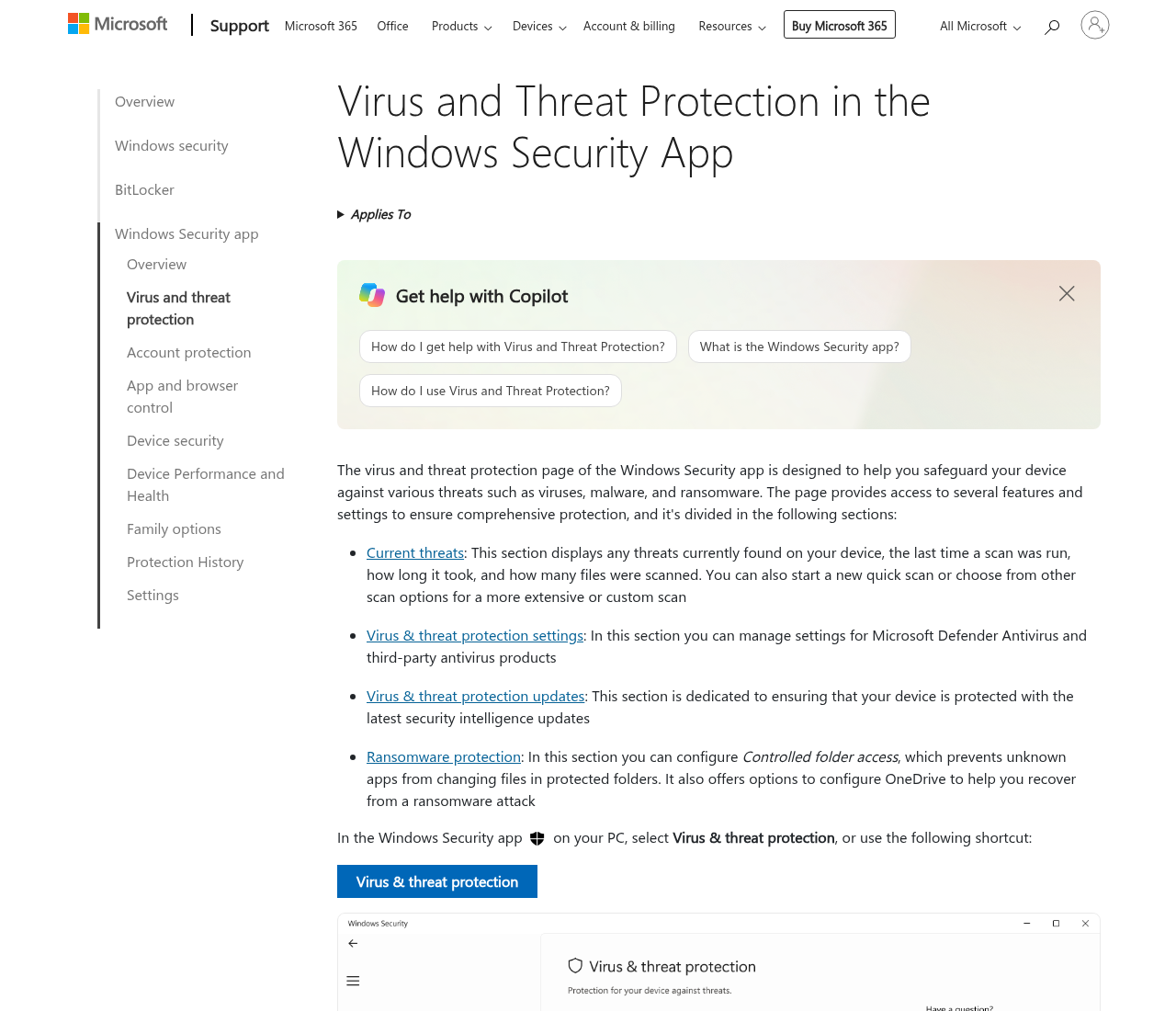
Open Windows Security → Virus & threat protection. You should see Microsoft Defender Antivirus. If real-time protection is off, turn it on. Windows often disables Defender while another real-time antivirus is installed; after the leftover is gone, Defender should come back. If it does not, wait through a restart, then check again. Stay on a supported Windows 10 or 11 build so definitions still update.
5. Run a scan, then Defender Offline if needed
Run a full scan when you are not working. If detections return after every reboot, use Microsoft Defender Offline as documented on Support and Microsoft Learn. That is the built-in deep scan, not a shopping cart. Then follow 9 cleanup steps if you still need a reset.
6. If you later want a paid extra, buy a job — not a replacement reflex
Expired subscription on Windows 11 does not mean you must buy a new brand the same day. Defender can be enough. If a job appears later — cleanup plus VPN on an old PC that passed a hardware check, US identity monitoring, a lab-oriented suite, a family device count, or a Wi-Fi inspector after the router is locked — pick that job. Commissions may affect placement on our extras page. You can also buy nothing.
Windows 11 with an expired third-party subscription is not an unprotected PC. Defender is the default. Keep Windows Update current. If a fake full-screen “call this number” page appears after you uninstall, that is a browser scam, not proof you must reinstall Avast — close it in Task Manager and read 8 ways to tell a popup is fake.
If you uninstalled because two engines were fighting on 4 GB of RAM, do not immediately drop a heavier suite back onto the same hardware. Finish the hardware check. Copy files you care about. Then decide whether any paid extra is actually a job you will use. Shop leftovers are common in tech-support threads; they are a configuration problem, not a morality tale about brands.
Do not install a second suite “just in case” next to Defender. That is how the laptop got slow.
After Defender is on, write the date you uninstalled the leftover and the Windows edition from Settings → System → About. If the PC is still slow, you now have a clean scanner and a hardware question — not a shopping emergency.
After you switch back, Is Microsoft Defender enough for a typical home PC? walks through when a paid suite is optional.