 Cyber
Cyber
A common tech-support question is: the old Windows PC is slow, antivirus “finds stuff but doesn’t really fix,” and the owner wants to wipe it later — but first they need documents and photos off the machine. They are afraid that copying files will infect a USB stick or a new PC. Start there. Recover the files you care about. Then clean, or reset. Do not stack three paid suites on a still-infected desktop and hope the family photos become safe. Microsoft Defender Antivirus, including Microsoft Defender Offline, is the built-in tool for the scan. A factory reset is often cleaner than buying another subscription. Buying nothing after a reset is a valid outcome.
1. Back up files without treating the copy as clean
This is a numbered step, not a footnote. Copy Documents, Desktop, Pictures, and any tax or school folders to a USB drive or external disk you can set aside. Prefer copying only those folders — not the whole Users tree, and not random “Program Files” leftovers. A safer method, if you can do it, is to shut the PC down and pull the drive, or boot a live USB and copy from outside Windows, so infected Windows is not running during the copy. If you must copy while Windows is still running, do it, then treat that USB as untrusted until you scan it on a healthy PC with Windows Security. We do not promise the copy is clean. Scan it. Do not open mystery executables from the backup. Photos and PDFs are the usual keepers. If the disk is also failing, see 7 signs the slowness is hardware in parallel — a clicking drive will not wait for a perfect lab scan.
2. Disconnect from the network
Unplug Ethernet and turn off Wi-Fi. That stops some malware from talking home and stops you from shopping for a suite while the machine is still dirty. You can reconnect later to update Defender definitions, then disconnect again before the deep scan if you want a quieter window.
3. Restart in Safe Mode
Hold Shift while you click Restart, or use Settings → System → Recovery → Advanced startup. Choose Troubleshoot → Advanced options → Startup Settings → Safe Mode. Some stubborn programs will not load there. It is also a calmer place to uninstall a leftover trial. If Safe Mode is still painfully slow, go back to the hardware list before you buy tools.
4. Run Microsoft Defender Offline
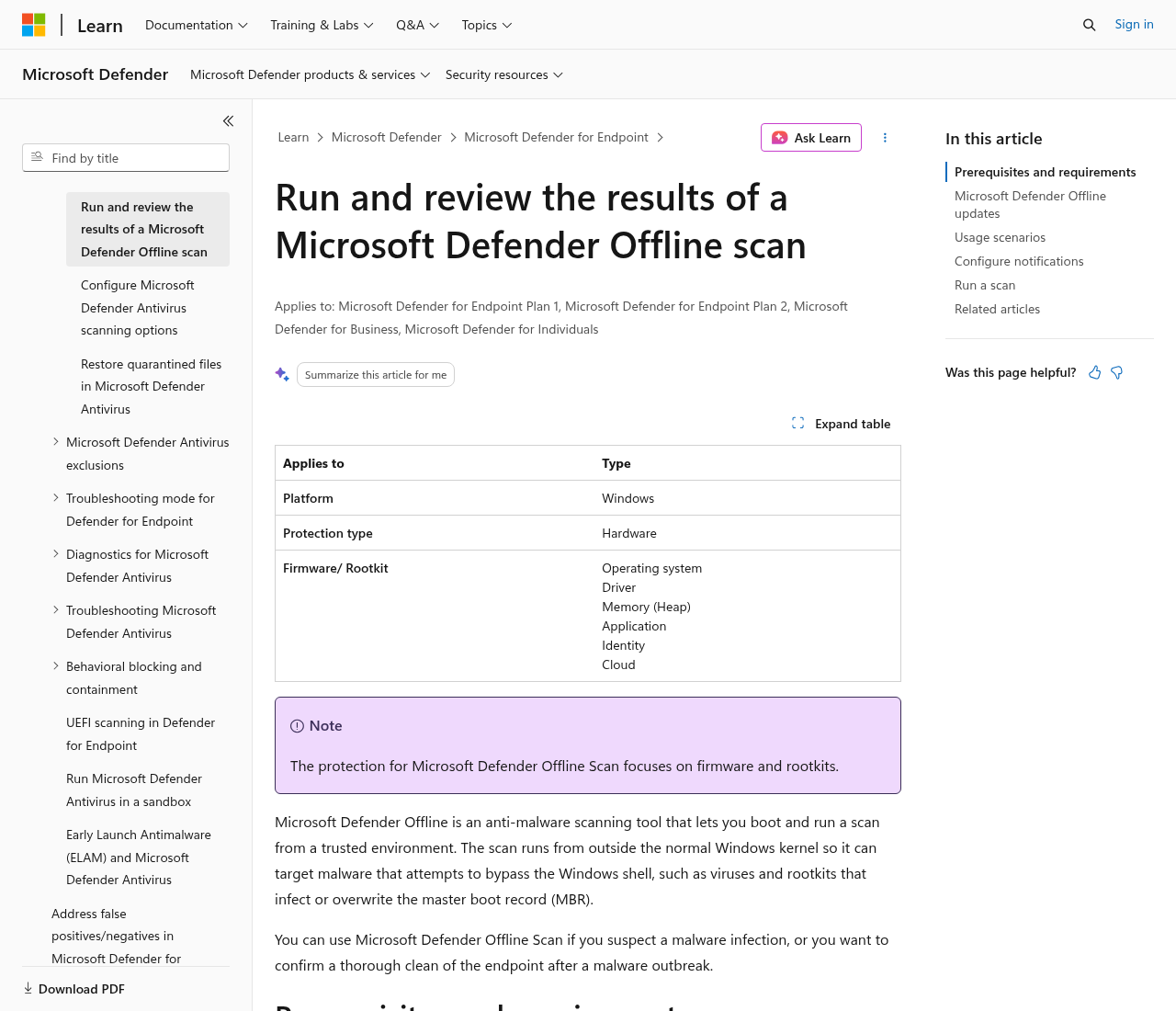
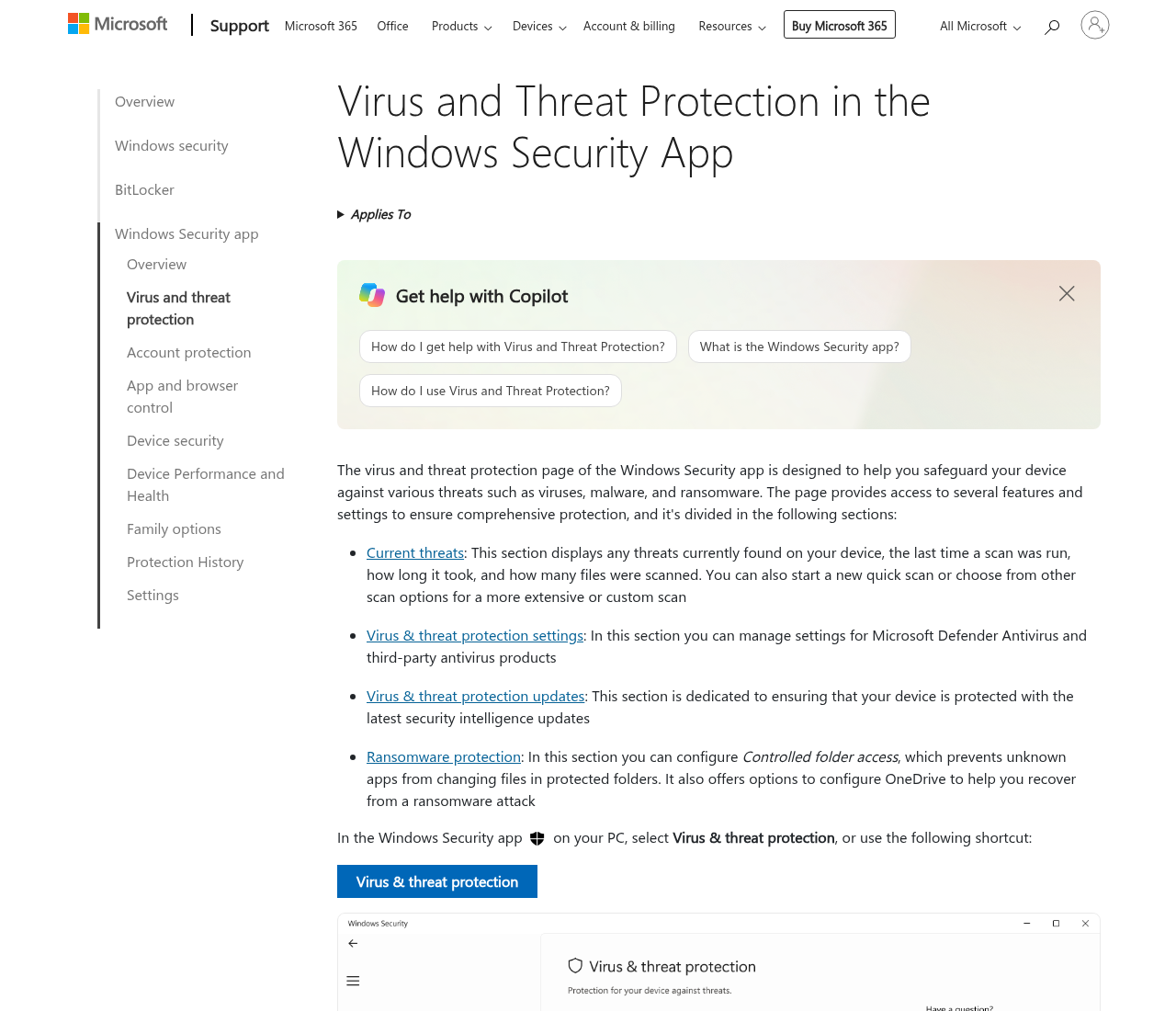
When an antivirus finds detections that come back after every restart, Microsoft’s own next step is an offline scan that runs outside the normal Windows session. Open Windows Security → Virus & threat protection → Scan options → Microsoft Defender Offline scan. Save your work; the PC will restart. Microsoft documents this on Support and in the Defender Offline article on Microsoft Learn. After the reboot, read Protection history. We do not have an official Microsoft how-to video we can verify for this step, so use those pages instead of a random YouTube walkthrough.
5. Use one on-demand scanner, not three
Households often install two extra “emergency” scanners on top of Defender because the first one “found stuff but didn’t really fix.” That stack is how you get two real-time engines fighting. If you run a second on-demand tool, pick one, run it once, then uninstall it. Microsoft’s remove-malware page is the official consumer path. A paid suite is optional after the machine is clean, not a third engine during the rescue.
6. Uninstall leftover trials and junk
Settings → Apps. Remove toolbars, “PC cleaner” trials, and expired security leftovers you are not paying for. A shop-installed Avast or an expired McAfee trial can stay resident for months. Uninstalling them so Defender can run alone is reasonable. It is not a claim those products are useless on a machine that actually needs their extras.
7. Check the browser for a hijack
Look at the homepage, search engine, and installed extensions. Remove anything you did not add. Clear the hijacked shortcut on the desktop if it points at a strange URL. A fake full-screen “call this number” page is a different problem — close it in Task Manager and read 8 ways to tell a virus warning popup is fake.
8. Change passwords from a clean device
If banking, email, or a password manager may have been used on the sick PC, change those passwords from a phone or another computer you trust. Turn on two-factor authentication. If a Social Security number may have been exposed, use IdentityTheft.gov. An antivirus scan does not change leaked credentials.
9. Reset Windows if the infection returns
If detections return after Defender Offline, or the browser hijack comes back every boot, a reset is often cleaner than stacking paid suites. In Settings → System → Recovery, use Reset this PC. Prefer “remove everything” if you already copied the files you need. Then scan the backup on the clean install before you copy files back. Norton advertises a virus-removal promise on some plans; that is Norton’s policy, not ours — read the current terms on the Norton identity guide if that extra is why you would pay after the machine is clean. Bitdefender is the suite we map to a lab-oriented install once the PC is already healthy, not a magic rescue layer. For an aging box that only needs cleanup and a light VPN after it passes a hardware check, see the older-PC guide.
Stay on Microsoft Defender after a reset if that is all you need. A paid cleanup bundle is optional. Confirm price, renewal, and refund terms if you still want one.
If files are already locked, start with ransomware on a home PC: what to do in the first hour.