 Cyber
Cyber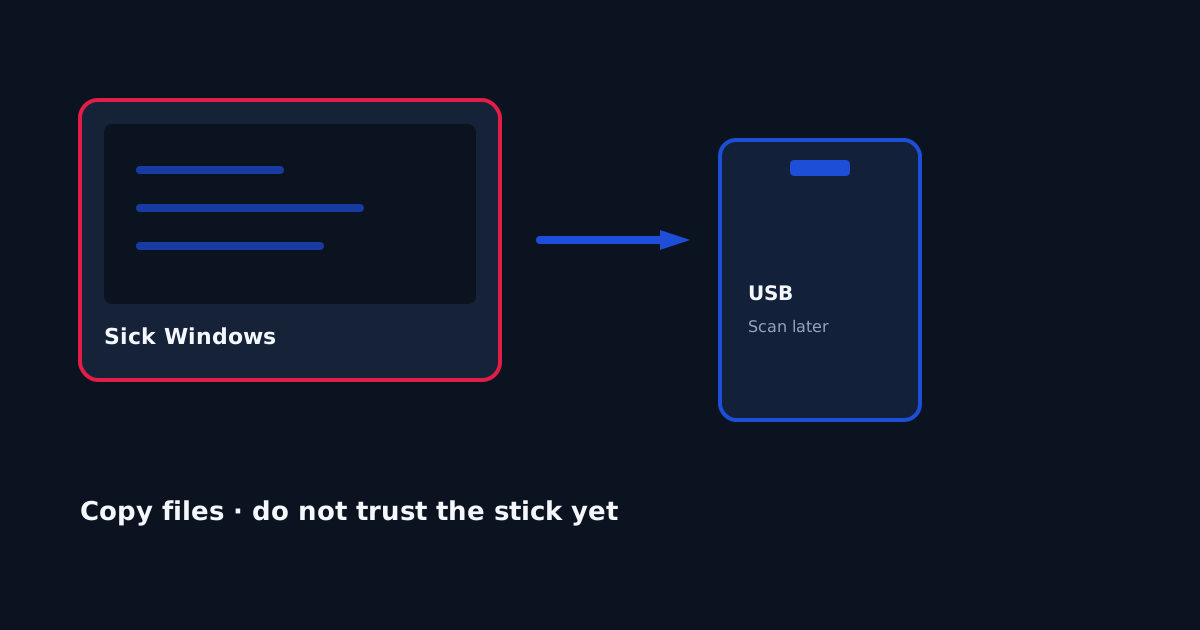
A common tech-support scene is an old Windows PC the owner plans to wipe — after they get documents and photos off. The fear is that copying those files will infect a USB stick or a new computer. That fear is reasonable. Treat the copy as untrusted until you scan it on a healthy PC. Pulling the drive, or copying from a live USB while infected Windows is not running, is safer than dragging folders while malware can still write. We do not promise the copy is clean. Microsoft Defender on the destination machine is the built-in scanner. Buying a paid suite is optional and is not required to copy photos.
1. What to copy — and what to skip
Copy Documents, Desktop, Pictures, Videos, and any folder you created for taxes or school. Skip Program Files, Windows, mystery “.exe” installers, browser-extension folders, and random downloads you do not recognize. A smaller copy is easier to scan. If the disk clicks or sits at 100 percent, read 7 hardware signs and copy what you can before the drive dies.
2. Safer: copy while infected Windows is not running
Shut the PC down. If you are comfortable opening a laptop, remove the drive and connect it to a healthy PC with a USB adapter — or boot a trusted live USB and copy from outside Windows. Malware that is not running cannot easily write a new autorun file onto the stick during the copy. This is still not a guarantee. Scan the copy anyway. Microsoft’s remove-malware help is the official consumer path for the destination PC.
3. If you must copy while Windows is running
Use a USB stick or external disk you can dedicate to this job. Copy only the folders above. Do not run “repair” tools you found in a search ad. Disconnect the network if you can. Eject the drive. Label it “untrusted until scanned.” Community threads describe this exact fear; they are not a lab source — see the r/techsupport discussion labeled in Sources.
4. Scan the USB on a healthy PC
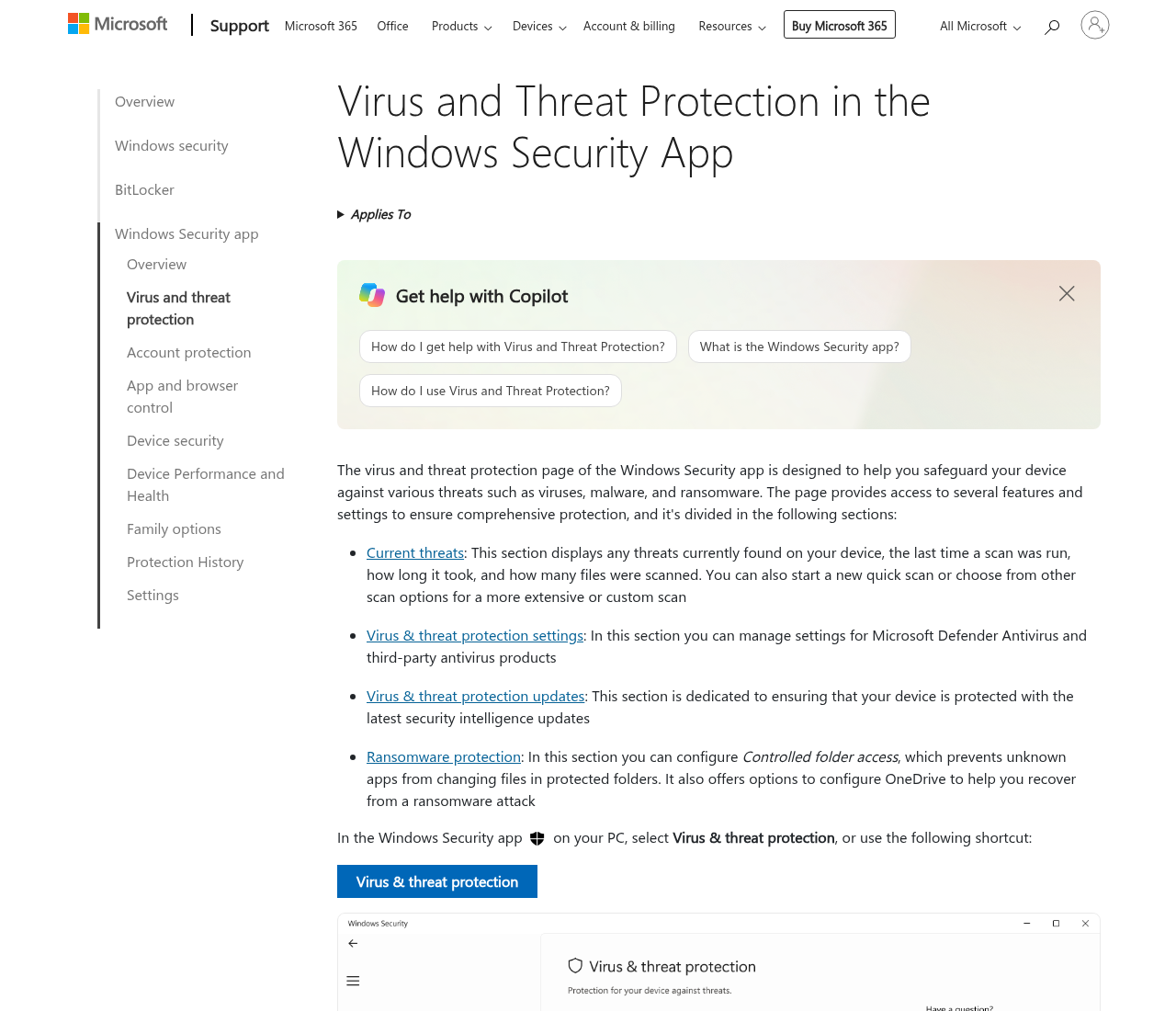
On a computer you already trust, open Windows Security → Virus & threat protection and scan the removable drive. If detections appear, do not copy those files onto the new PC’s Desktop. Photos and PDFs are usually keepers; executables are not. If the healthy PC itself starts acting odd, disconnect it and run Microsoft Defender Offline.
5. What not to open from the backup
Do not double-click unknown .exe, .scr, .js, or Office files with macros until you know what they are. Prefer opening photos in the Photos app and PDFs after a clean scan. If you needed those files for work, copy them to a folder and scan that folder again.
6. Then clean or wipe the old machine
Once the files you care about are on the scanned stick, follow 9 steps to clean a virus-infected Windows PC: disconnect, Safe Mode, Defender Offline, one scanner, reset if it returns. A reset is often cleaner than stacking paid suites. Stay on Defender after the reset if that is all you need.
If the healthy PC you use for the scan is a family laptop, create a folder named something obvious, like “from-old-pc-untrusted,” and keep the USB files there until the scan finishes. Do not let a child open the stick “to see the pictures” first. After a clean scan, copy keepers into the normal Pictures or Documents folder and delete the untrusted folder. If Defender quarantined an installer you thought you needed, leave it quarantined.
Cloud upload from the sick PC is a weaker idea than a local copy you can scan. An infected browser session can send more than photos. If the only path is cloud, upload only image and PDF files from an already-copied folder, then scan the download on the new PC. Change email and banking passwords from a device that never ran the old Windows install. If a Social Security number may have been sitting in a tax PDF on that machine, use IdentityTheft.gov after you have a clean place to work.
Buying nothing is valid. A paid cleanup bundle does not make an unscanned USB safe. The job is recover, scan, then wipe — in that order. If you only needed this page, you can stop here and never open a paid offer.