 Cyber
Cyber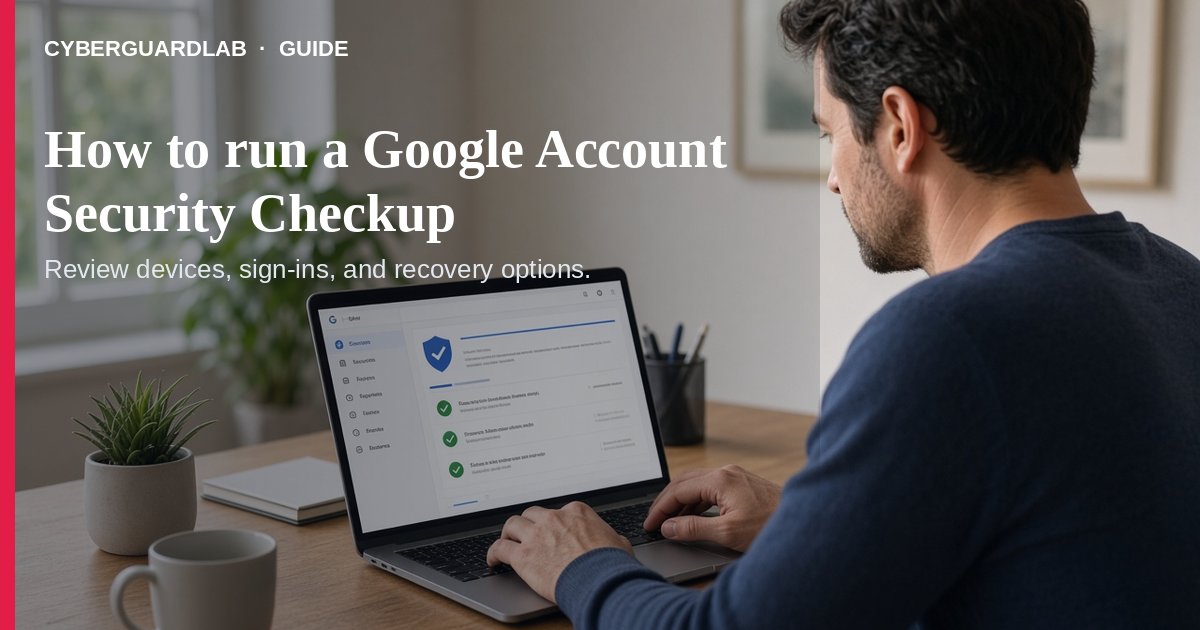
Google’s Security Checkup walks you through personalized recommendations for your Google Account — recovery options, 2-Step Verification, passkeys, app access, and more. Google recommends doing it regularly so small gaps do not pile up (Take a Security Checkup; Make your account more secure).
This guide is about the Checkup workflow, not the full story of recovering a stolen inbox (hacked email or social account) or every 2FA setup path (turn on 2FA). No purchase required.
1. Open Security Checkup
- Sign in to your Google Account on a device you trust.
- Open Security Checkup (or tap your profile picture → Recommended actions when Google shows it).
- If you see a green shield under Security & sign-in, Google has no urgent recommendations — still skim for tips (Make your account more secure).
- Color cues for Recommended actions: blue = tips, yellow = important, red = urgent.
2. Work the recommendations in order
- Recovery phone and email — so you can get alerts and regain access if locked out.
- Passkey (optional but strong) — sign in with fingerprint, face, or device PIN instead of a phishable password.
- 2-Step Verification — prefer security keys or Google Prompts over SMS codes when you can (Google account security guide). Pair with our 2FA for Gmail / Apple / bank guide.
- Remove risky app access — revoke apps and “less secure” sign-in you no longer use.
- Screen locks on phones that stay signed in to Gmail or Photos.
- Optionally run Password Checkup for weak, reused, or exposed saved passwords, keep Chrome / OS / apps updated (automatic updates), and use a password manager habit.
3. After the Checkup
- Note any device or recent security activity you do not recognize — change your password and follow Google’s unfamiliar-activity steps.
- Journalists or high-risk users can review Google’s Advanced Protection Program (security keys + tighter app rules) — most households do not need it.
- Pair this with our data breach check and Play Protect scan guides if you use Android. If the account was already taken, start with hacked email / social recovery.
FAQ
How often should I run Security Checkup?
Google says regularly. A practical household rhythm is every few months, plus after a suspicious login alert.
Does a green shield mean I am finished forever?
It means no immediate recommended actions. Revisit after travel, a new phone, or a breach notice.
Is Security Checkup the same as 2-Step Verification?
No. Checkup is the dashboard; 2SV is one recommendation inside it.
Do I need Advanced Protection?
Only if you face targeted attacks (Google cites journalists/activists). Typical US households can stay on standard Checkup + 2SV.
Do I need paid antivirus to finish Security Checkup?
No. The Checkup is free. Buy-nothing is valid.
If you still want a paid suite
Google Account hygiene does not require paid antivirus. Built-in Checkup + 2SV + updates are a valid buy-nothing stack. If you want multi-device paid protection, use only these on-site paid links: TotalAV (paid link), Norton (paid link), Bitdefender (paid link), McAfee (paid link), Avast (paid link).