 Cyber
Cyber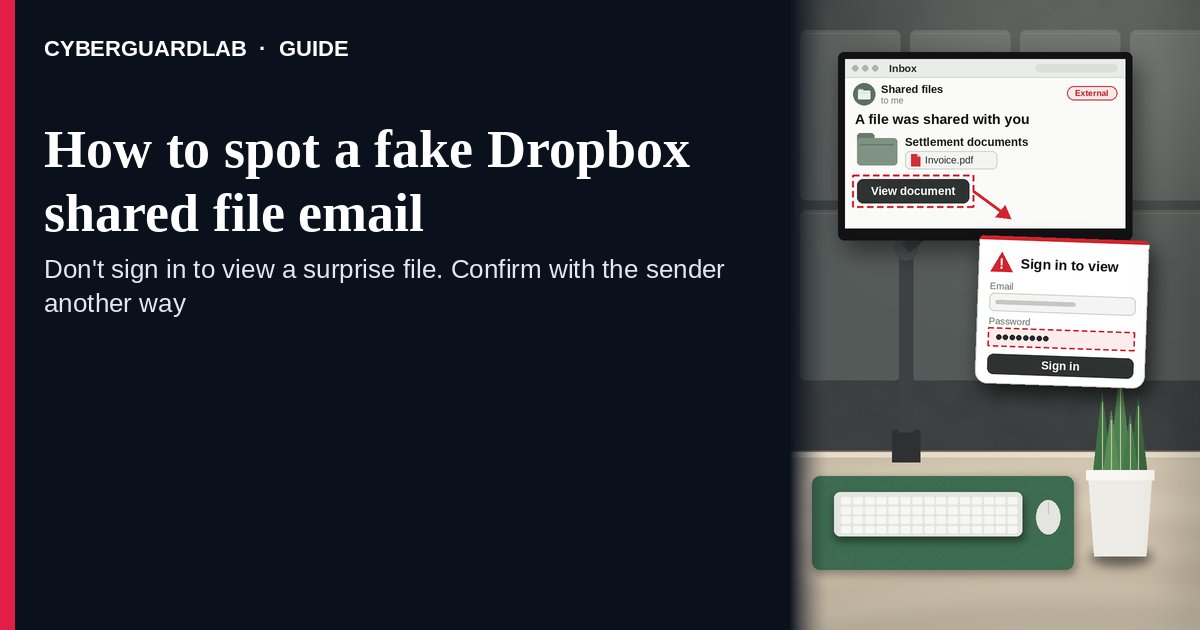
A fake Dropbox shared file email is a message that says someone shared a file or folder with you on Dropbox — often an invoice, a “settlement document,” a purchase order, or photos — and then sends you to a page that asks for your email password or pushes a download. Some are forged copies of Dropbox notifications; others are real Dropbox notifications sent from an account a scammer has taken over. Dropbox’s Help Center covers both: official Dropbox email only comes from verified Dropbox domains such as dropbox.com or dropboxmail.com, and even if a notification really came from Dropbox, you shouldn’t view or download a file, or accept a shared folder invitation, unless you know the sender. The safe habit is to check with the sender another way, open Dropbox yourself by typing dropbox.com, and forward anything suspicious to abuse@dropbox.com. This page is about Dropbox-branded “shared a file / folder with you” emails and notifications only. Signature lures are in Fake DocuSign signature request; general phishing signs are in How to spot a phishing email. CyberGuardLab is independent. Referral fees may affect product placement on other pages. Buying nothing and sticking to free verification habits is a valid outcome.
The short answer
Don’t open, download, or sign in from an unexpected Dropbox share — even a real-looking one — until you’ve confirmed with the sender by phone or a separate message. Never type your email password to “view” a shared file, and forward suspicious shares to abuse@dropbox.com.
What a fake Dropbox shared file email usually looks like
The message plays on curiosity or work pressure: a document you “need to review” from a name you half recognize.
Common shapes US households report:
- “[Name] shared ‘Invoice_2026.pdf’ with you” where the button leads to a page outside Dropbox that asks you to sign in with your email account (Outlook, Gmail, Microsoft 365) to “view the document.” That page steals the password.
- A real Dropbox notification from a hacked contact. Because any Dropbox user can share with your email address, a scammer who took over someone’s account can send genuine notifications. Dropbox’s advice still applies: don’t open it unless you know the sender and expected it.
- Shared file that is really a link to download something — a .zip, an .exe, or an Office file that asks you to “enable content.” See Check a download before opening it.
- Look-alike sender or link address that isn’t a Dropbox domain, or a reply-to address that goes somewhere else.
- Urgent business wording — “final notice,” “payment documents,” “legal settlement,” or a missing purchase order — to make you click before you think.
Dropbox’s Help Center lists the same patterns: links to view or download a file from someone you don’t know, links to fake login or password reset pages, and requests to reply with your username or password.
We do not claim Dropbox shares are dangerous in general. People share files every day. The test is whether you expected it and whether it asks for a password or a risky download.
Fake Dropbox share vs real Dropbox share vs related lure
| Signal | Fake or hijacked Dropbox share | Real Dropbox share (typical) | Related lure (fake signature request) |
|---|---|---|---|
| Sender | Non-Dropbox domain, or a contact you weren’t expecting a file from | Dropbox domain (dropbox.com / dropboxmail.com) and someone you already talked to about the file | “Please review and sign” from an unknown company (see Fake DocuSign signature request) |
| Ask | Sign in with your email password, or download and “enable content” | Open the file in Dropbox; no email password needed | Sign in to “view the envelope” |
| Pressure | “Expires today” or “final notice” | Whenever you’re ready | Signing deadline |
| Safe next step | Ask the sender another way; forward to abuse@dropbox.com | Open it after you confirm, from dropbox.com you typed | Confirm with the company using a number you found |
| Related guide | This page | Dropbox Help Center | Fake DocuSign signature request |
A shared file never needs your email account password. If a page asks for it before showing you a document, close the page.
How to verify a Dropbox shared file email (US household steps)
Do this whenever an unexpected Dropbox share, folder invitation, or “file waiting for you” email arrives. You do not need a paid product to finish these steps.
- Do not click, download, or accept the invitation yet. Leave the email where it is.
- Ask the sender another way. Call or text the person using contact details you already have — not by replying to the email. Dropbox recommends contacting the service or person directly to verify that a message or link really came from them.
- Check the sender and link domains. Dropbox says official email comes only from verified Dropbox domains such as dropbox.com or dropboxmail.com. A different domain means a fake. A correct domain doesn’t prove the sharer is who you think, so step 2 still matters.
- Open Dropbox yourself if you have an account. Type dropbox.com or use the Dropbox app, sign in, and look for the share there. If you don’t use Dropbox, you don’t need to create an account or sign in anywhere to deal with this email — just confirm with the sender.
- If you already typed a password or opened a download, treat the first hour as incident response. Change the password you typed (often your email password) from a device you trust, turn on two-step verification, and run a full scan with your built-in security tool if you opened a file. Follow Clicked a phishing link — first hour. If your email account starts sending odd messages, see Hacked email or social account.
- Report it and warn the sender. Forward the complete email to abuse@dropbox.com (for a suspicious link, include how you got it and the full URL), forward other phishing to reportphishing@apwg.org, and file at ReportFraud.ftc.gov. If a real contact’s account sent it, tell them so they can secure it. Checklist: How to report a scam to the FTC.
Signs the share is fake or unsafe (scan table)
Use this as a quick pass before you open anything.
| Sign | Why it matters | What to do |
|---|---|---|
| You weren’t expecting a file from this person | Hacked accounts send real-looking shares | Ask them by phone or text first |
| Page asks for your email password to view the file | Password-stealing page | Close it; never enter the password |
| Sender or link isn’t a Dropbox domain | Dropbox email only comes from verified Dropbox domains | Forward to abuse@dropbox.com |
| File is a .zip, .exe, or asks you to “enable content” | Common way to install malware | Don’t open; check it first |
| “Final notice” or “expires today” | Urgency stops you from checking | Slow down; a real sender can resend |
| Generic message from someone you rarely hear from | A mass phishing send from a taken-over account | Verify, then warn the sender |
Free habits that reduce the blast radius
You do not need a new subscription to lower damage if a fake Dropbox share gets through.
- Treat every unexpected share as unconfirmed until you’ve heard from the sender another way.
- Never type your email password into a page you reached from a file-sharing email.
- Use a different password for each service, and turn on two-step verification for Dropbox and your email, as Dropbox recommends.
- If you use Dropbox, open it only from the app or a bookmark for dropbox.com.
- Household rule: nobody opens a “document” download or signs in to see a file because of a surprise email.
- Optional antivirus or web filtering is a separate layer after a bad click or download; it does not replace checking with the sender. Built-in Microsoft Defender plus those habits is enough for many households.
What this page is not
This page is not a review of Dropbox or other file-sharing services, and not a business email security or admin guide.
It does not claim CyberGuardLab lab scores or “#1 anti-phishing” ranks. It does not say Dropbox itself was hacked — scammers forge its emails or misuse other people’s accounts. It is not the e-signature guide (see Fake DocuSign signature request) and not the “storage is full” guide (see Fake iCloud storage phishing). Official reporting stays with abuse@dropbox.com, ReportFraud.ftc.gov, and IdentityTheft.gov if personal data was stolen.
If you decide a paid extra is a real job
Most households can handle fake Dropbox shares with the free steps above. Open a paid page only if you already named a job — for example broader web filtering, cross-device AV after a bad download, or identity alerts after you gave a scammer personal data — and you will actually use it.
- PC / Mac suite with phishing and web protections many households already compare: Norton plans (paid link; confirm renewal price).
- Independent-test–oriented suite option: Bitdefender plans (paid link).
- Household suite shopping starting point: TotalAV plans (paid link; confirm renewal).
- Multi-device bill under one vendor: McAfee plans (paid link; confirm device limit).
- Another suite path some homes already use: Avast plans (paid link).
Buying nothing beyond free check-with-the-sender habits is still valid. Paid links above are on-site only.
FAQ
How can I tell if a Dropbox email is real?
Dropbox says official email only comes from verified Dropbox domains such as dropbox.com or dropboxmail.com. But a real notification can still carry a bad file if the sharer’s account was taken over, so also confirm with the sender another way before opening anything.
It came from someone I know. Is it safe to open?
Not until you check. Dropbox advises not to view or download a file, or accept a shared folder invitation, unless you know the sender — and a hacked account looks exactly like someone you know. Call or text them first.
Why does the file ask me to sign in with my email password?
That’s the scam. A shared file doesn’t need your email account password. Close the page; if you already typed it, change that password right away and turn on two-step verification.
I opened the download. What should I do first?
Disconnect from Wi-Fi if the device is acting strangely, run a full scan with Microsoft Defender or your built-in tool, change passwords from a different device you trust, and follow Clicked a phishing link — first hour.
How do I report a fake Dropbox share?
Forward the complete email to abuse@dropbox.com, or email them the full link and how you got it. You can also forward phishing to reportphishing@apwg.org and file at ReportFraud.ftc.gov.
Do I need paid antivirus to spot these emails?
No. Spotting is a habit: check with the sender, never type a password to view a file, don’t open surprise downloads. Microsoft Defender plus those habits is enough for many households. Antivirus can be an optional layer after a bad download; it does not replace that habit.