 Cyber
Cyber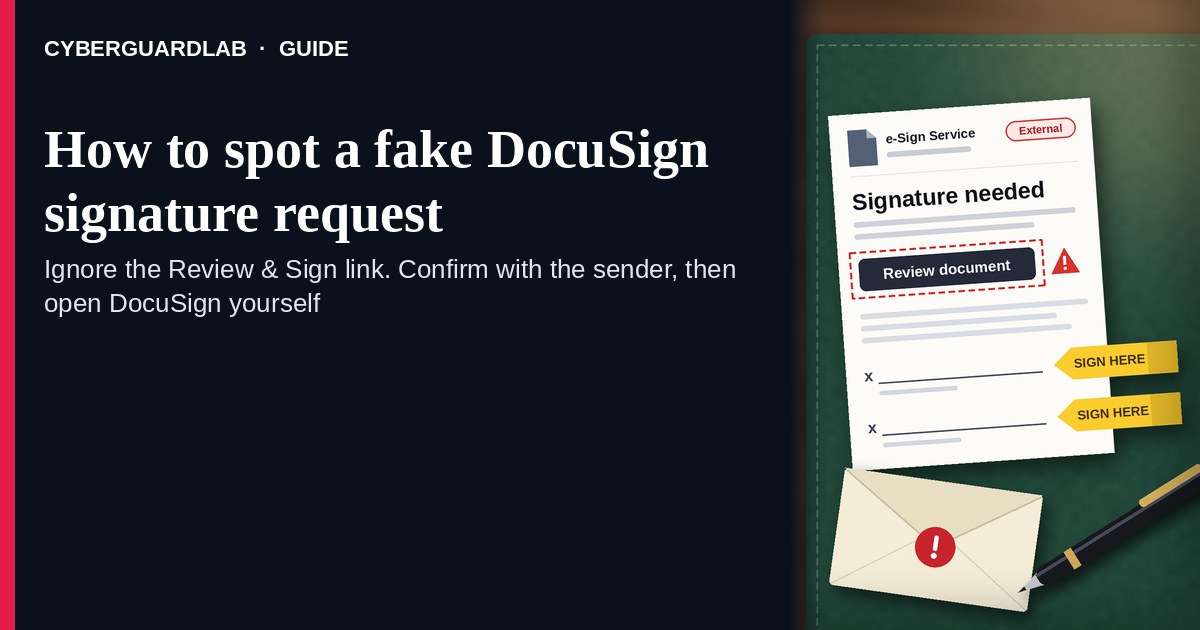
A fake DocuSign signature request is an unexpected email, SMS, or DM that claims someone needs you to “review and sign,” “complete a document,” or “view a shared envelope” through a cold link. Real DocuSign envelopes are opened after you start from a message you expected, or after you sign into DocuSign yourself on a path you trust — not from a surprise “Please Review & Sign” button that lands off DocuSign. DocuSign Support explains how to tell if an email from DocuSign is legitimate and publishes Trust / Security guidance for customers. This page is about DocuSign-branded e-sign / “please review and sign” phishing only — not a general email-phishing encyclopedia. Related first-hour steps live under Clicked a phishing link — first hour. Reporting habits: How to report a scam to the FTC. Account hardening: Turn on 2FA. CyberGuardLab is independent. Referral fees may affect product placement on other pages. Buying nothing and sticking to free verification habits is a valid outcome.
The short answer
Ignore the Review / Sign / View Document link in an unexpected “DocuSign signature request”; confirm the sender through a channel you already trust; open only a DocuSign session you start yourself — never enter email, work, or DocuSign passwords on a cold page.
What a fake DocuSign signature request usually looks like
Scammers copy DocuSign envelope language: “Please Review & Sign,” “Complete with DocuSign,” “Your document is ready,” or “Action required — signature needed today.” The job is credential theft (email / Microsoft / Google / DocuSign login), malware from a fake “viewer,” or both.
Common shapes US households report:
- Unexpected “Please Review & Sign” email with a bright View / Review / Sign button that does not land on a real DocuSign domain you recognize.
- SMS or iMessage about a “shared document” or “signature needed” with a short link to “open the envelope.”
- Look-alike DocuSign login or document-viewer page after you tap — then email, password, and often a one-time code harvest.
- Fake invoice, HR offer, lease, or wire-instruction PDF dressed as a DocuSign envelope so you rush past checking the sender. Invoice and payment-change tricks: Fake invoice and bill-pay scams.
- Follow-up after any reply or tap — once you engage, expect more “support” emails or a scripted call asking for codes. Related first-hour steps: Clicked a phishing link — first hour.
FTC phishing guidance: do not click links in unexpected messages; if you think it might be real, contact the company or person with a channel you know is real; report at ReportFraud.ftc.gov.
We do not claim DocuSign “never emails about signatures.” DocuSign sends real envelope notices when someone shares a document with you. The safe habit is always the same: unexpected Review & Sign → confirm the real sender first → open DocuSign only in a session you start yourself (or through a path the confirmed sender already uses with you).
Fake DocuSign request vs real DocuSign notice vs related phishing
| Signal | Fake DocuSign signature / Review & Sign message | Real DocuSign envelope notice (typical) | Related credential phishing |
|---|---|---|---|
| Opening hook | “Please Review & Sign / complete this document today” from a stranger or odd look-alike name. | Envelope you already expected from a known person, employer, landlord, or vendor. | General “password reset,” Teams/Zoom join, or Microsoft renewal panic. |
| Ask | Cold View / Sign link to a non-DocuSign host, fake login, or odd attachment. | Open inside DocuSign after you recognize the sender; manage security in a session you trust. | Sign-in on a look-alike Microsoft, Google, or email page. |
| Pressure | Same-day wire, job offer, lease, or “expires in 1 hour” countdown. | Normal signing timeline; you can confirm the sender first. | Account lock, meeting-in-5-minutes, or renewal countdown. |
| Safe next step | Ignore link. Confirm sender on a known channel; open DocuSign yourself. | Complete signing only after sender check inside real DocuSign. | See first-hour and report guides; never reuse passwords on cold pages. |
| Related guide | This page | Official DocuSign / support.docusign.com typed by you | Clicked a phishing link — first hour · Report a scam to the FTC |
If the page after View / Sign asks for your email password, Microsoft / Google password, or a “DocuSign password” on a cold form you did not expect, stop — that is credential theft dressed as an e-sign request.
How to verify a DocuSign signature request (US household steps)
Do this when any unexpected DocuSign “Review & Sign” / “complete document” / cold View link appears. You do not need a paid product to finish these steps.
- Do not tap View / Review / Sign, open a surprise attachment, or enter a password on a page that arrived from the message. Close the email, text, or DM if the sender is unknown or the document topic is surprising.
- Confirm the request with the real sender through a channel you already trust. Call, text, or message the person or company using a number or chat thread you already have — not a Reply on the suspicious envelope email.
- Open DocuSign the way you already trust only after that check (or if you already expected the envelope). Type a DocuSign URL you know, use a bookmark, or open DocuSign from a path your workplace already uses — not the cold View / Sign button from the unexpected message.
- Never enter email, work, Microsoft / Google, or DocuSign passwords on a cold Review & Sign page. Legitimate DocuSign signing does not require you to trust an unexpected shortener or look-alike domain. Do not share 2FA or email codes with anyone who contacted you first.
- If you already tapped, typed a password or code, or downloaded a “viewer,” treat the first hour as incident response. Change the password you typed from a device and site you trust; turn on 2FA if it was off; tell work IT if it was a work account. Follow Clicked a phishing link — first hour. Report at ReportFraud.ftc.gov; if identity data was stolen, use IdentityTheft.gov.
- Report the message and tell the household / team. Mark the email as phishing / junk; forward scam texts to 7726 (SPAM); file at ReportFraud.ftc.gov. Agree that nobody “signs DocuSign” from unexpected cold links without a sender check. Checklist: How to report a scam to the FTC. Turn on 2FA on the email and work accounts that would unlock a stolen DocuSign or inbox login.
Signs the message is fake or unsafe (scan table)
Use this as a quick pass before you tap View / Sign or type a password.
| Sign | Why it matters | What to do |
|---|---|---|
| View / Review / Sign link lives only inside the unexpected email, text, or DM | Password and account takeover | Ignore; confirm sender; open DocuSign yourself if needed |
| URL is a shortener, misspelled DocuSign name, or random form host | Phishing page | Never tap; confirm sender on a known channel |
| Urgent “sign in 15 minutes,” same-day wire, or “offer expires tonight” | Fear used to skip verification | Slow down; confirm the real sender first |
| Sender is a look-alike name, odd free-mail address, or unexpected vendor | Easy to spoof display names | Verify only after a known-channel check |
| Page asks for email / Microsoft / Google / DocuSign password plus OTP on the same cold form | Credential harvest | Stop; change that password if you typed anything |
| You already replied, tapped, shared a code, or spoke to a “DocuSign support agent” | Follow-up spam, malware, or takeover risk | Stop engaging; run first-hour steps if you entered secrets |
Free habits that reduce the blast radius
You do not need a new subscription to lower damage if a fake DocuSign signature request gets through.
- Household / team rule: unexpected Review & Sign → confirm the real sender first → never password-paste on cold pages.
- Prefer DocuSign paths your workplace or landlord already uses; do not trust surprise shorteners.
- Strong unique passwords + 2FA on email and work accounts limit what a stolen envelope login can unlock.
- Forward obvious scam texts to 7726; enable carrier and mailbox spam filtering when available.
- Optional antivirus / web filtering is a separate layer after a bad tap; it does not replace the sender-check habit. Built-in Microsoft Defender plus those habits is enough for many households.
What this page is not
This page is not a full DocuSign product manual, not legal advice about a contract you already signed, and not a general “every phishing email” encyclopedia. For the general checklist, see How to spot a phishing email.
It does not claim CyberGuardLab lab scores or “#1 anti-phishing” ranks. It does not tell you to ignore a real envelope you already expected from a known sender — it tells you to confirm unexpected requests and open DocuSign only in a session you trust. It is not a Zoom/Teams meeting-join guide and not a Microsoft 365 billing/renewal guide. Official legitimacy checks and reporting stay with DocuSign Support / Trust, ReportFraud.ftc.gov, and IdentityTheft.gov if personal data was stolen.
If you decide a paid extra is a real job
Most households can handle fake DocuSign signature requests with the free steps above. Open a paid page only if you already named a job — for example broader web filtering, cross-device AV, or identity alerts after you gave a scammer personal data — and you will actually use it.
- PC / Mac suite with phishing and web protections many households already compare: Norton plans (paid link; confirm renewal price).
- Independent-test–oriented suite option: Bitdefender plans (paid link).
- Household suite shopping starting point: TotalAV plans (paid link; confirm renewal).
- Multi-device bill under one vendor: McAfee plans (paid link; confirm device limit).
- Another suite path some homes already use: Avast plans (paid link).
Buying nothing beyond free sender-check and official-session habits is still valid. Paid links above are on-site only.
FAQ
Does DocuSign really email about signature requests?
Yes. DocuSign sends real envelope notices when someone shares a document with you. That is why the safe test is not “DocuSign never emails,” but “I only open unexpected Review & Sign messages after I confirm the sender and use a DocuSign path I trust.”
The message shows a document name, company logo, or partial address. Is that enough?
No. Document titles, logos, and address-like strings are easy to reuse from public sites, breaches, or guesswork. Trust a sender you can confirm on a known channel, not the message chrome.
I already entered my email or work password on the Sign page. What should I do first?
Change that password from a trusted device and official site. Turn on 2FA if it was off. Tell work IT if it was a work account. Follow Clicked a phishing link — first hour. Report at ReportFraud.ftc.gov.
How is this different from general email phishing?
This page is DocuSign-branded e-sign / “please review and sign” phishing only. Same cold-link credential trick, DocuSign costume — not a full phishing encyclopedia. For first-hour response after a bad tap, use Clicked a phishing link — first hour; for reporting, use How to report a scam to the FTC.
How do I report a fake DocuSign signature request?
Mark the email as phishing / junk, forward scam texts to 7726 (SPAM), and file at ReportFraud.ftc.gov. Steps for the FTC side are in How to report a scam to the FTC.
Do I need paid antivirus to spot these messages?
No. Spotting is a verification habit: confirm the sender, ignore the cold View / Sign link, never enter secrets on a cold page. Microsoft Defender plus those habits is enough for many households. Paid antivirus can be a separate optional layer for malware after a bad tap; it does not replace that habit.