 Cyber
Cyber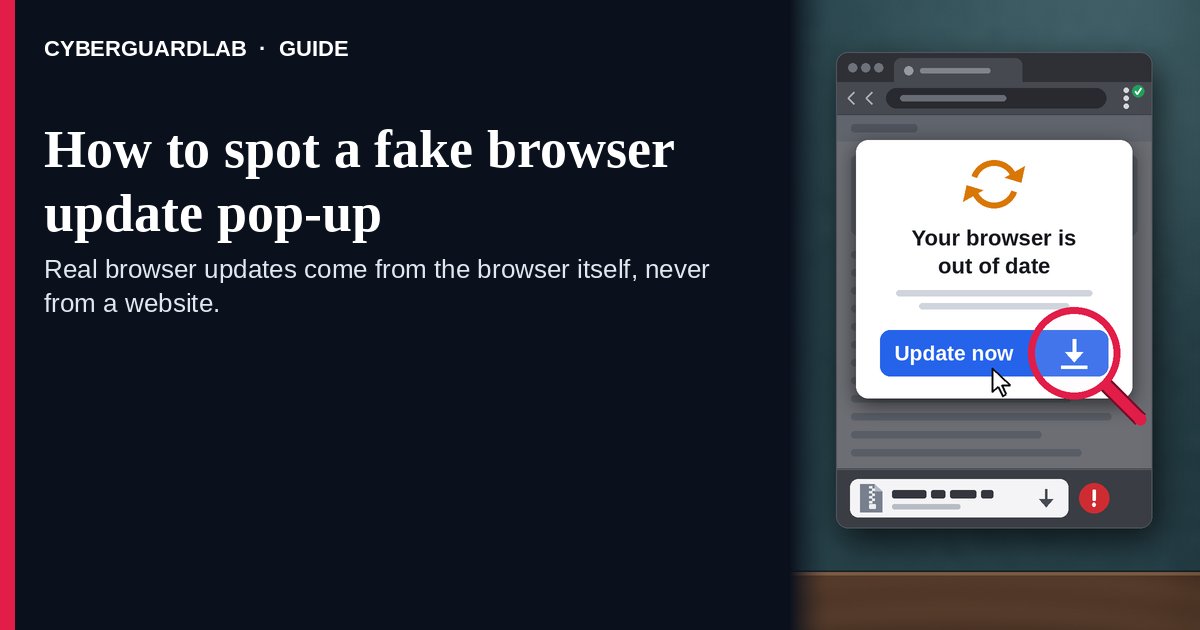
A fake browser update pop-up is a message inside a web page that says your Chrome, Edge, or other browser is out of date and offers an “Update” button that downloads a file. The file is malware, not an update. The Center for Internet Security (CIS) says criminals plant these prompts on hacked, legitimate websites and tailor them to the browser you are using, and the FBI and CISA say the Interlock ransomware group has disguised its malware as fake Google Chrome and Microsoft Edge updates. The safe habit is simple: real browser updates come from the browser itself, never from a website, so close the page and check for updates from the browser’s own menu. This page is about fake “update your browser” prompts on web pages. Fake virus warnings with a phone number are in 8 ways to tell a virus warning popup is fake. CyberGuardLab is independent. Referral fees may affect product placement on other pages. Buying nothing and sticking to free habits is a valid outcome.
The short answer
If a web page tells you your browser is out of date and offers a download, don’t click it and don’t open anything it saved. Close the tab, then open the browser’s own Help or About page to check for updates. If you already opened the file, disconnect, change passwords from another device, and scan.
What a fake browser update pop-up usually looks like
The page copies the look of your browser and gives you one button that a real update never needs.
Common shapes described by CIS and by the FBI and CISA:
- “Your browser is out of date” on a normal website. CIS says the fake update is generated on a compromised website and matched to the browser you use, such as Google Chrome, so it looks personal.
- A big “Update” button that downloads a file. CIS describes downloads written in JavaScript, or a zipped file or shortcut, that lead to more malware once opened. The FBI and CISA describe a fake Chrome program that works as a remote access trojan, which lets criminals control the computer.
- A site you already trust. The FBI and CISA say Interlock actors get in through drive-by downloads from compromised legitimate websites, so a familiar address is not proof.
- A fake “Chrome Updater” that keeps coming back. The FBI saw the malware add a startup entry named “Chrome Updater” so it runs every time you sign in.
- “Updates” for other software. The FBI and CISA note a reported shift to fake files named like updates for security software and VPN apps, the same trick with a different label.
- A “fix” that asks you to paste a command. Some pages skip the download and tell you to press Windows + R and paste. That is a separate trick covered in Fake CAPTCHA that asks you to run a command.
We do not say every update message is fake. Your browser and your operating system really do update, often. The test is where the message lives: inside the browser’s own menu or settings, or inside a web page.
Fake update pop-up vs real browser update vs related lure
| Signal | Fake browser update pop-up | Real browser update (Chrome, Edge, Safari) | Related lure (fake virus warning with a phone number) |
|---|---|---|---|
| Where it shows up | Inside a web page you were reading | The browser’s own menu, About page, or toolbar; Safari through Software Update | A full-screen page that may lock the browser |
| What it asks | Click “Update” and open a downloaded file | Relaunch the browser, or nothing at all | Call a number and allow remote access |
| What you get | A ZIP, script, shortcut, or program file | No file to open; the browser installs it itself | A phone call with a fake “technician” |
| Safe next step | Close the tab; delete any download unopened | Relaunch when convenient | Close the page; never call the number |
| Related guide | This page | Turn on automatic updates | 8 ways to tell a virus warning popup is fake |
Google says Chrome normally updates in the background when you close and reopen it, and Microsoft says Edge updates automatically when you restart it by default. Neither needs a website to hand you a file.
How to handle a fake browser update pop-up (US household steps)
Do this whenever a web page, not your browser’s own menu, tells you to update. You do not need a paid product to finish these steps.
- Don’t click the button. “Update now,” “Download update,” or “Install the latest version” on a web page is the trap. Don’t click “Cancel” or “X” inside the page either; close the tab itself.
- Close the tab, or the whole browser if it won’t let go. If the page keeps reopening, close the browser with Task Manager on Windows (Ctrl + Shift + Esc) or Force Quit on a Mac. When you reopen it, don’t restore that tab.
- Check for a real update from the browser’s own menu. In Chrome, go to More > Help > About Google Chrome and select Relaunch if it offers one. In Edge, go to Settings and more > Help and feedback > About Microsoft Edge (or type edge://settings/help). Safari updates with macOS through Software Update. For other browsers, use their own Help or About page or the maker’s site you type yourself.
- Delete anything the page downloaded, without opening it. Open your Downloads folder and delete the file (often a ZIP, a .js script, a shortcut, or an .exe installer), then empty the Recycle Bin or Trash. If you’re unsure about a file, see Check a download before opening it.
- If you opened the file, disconnect and change passwords from another device. Turn off Wi-Fi or unplug the cable, then change passwords for email, banking, and your password manager from a phone or computer you trust, and turn on two-step verification. The FTC says to stop logging in to online accounts on a computer you think has malware. More first-hour steps are in Clicked a phishing link — first hour.
- Scan, then report. Run a full scan with Windows Security, then a Microsoft Defender Offline scan. Report the page at ReportFraud.ftc.gov, and file at IC3.gov if money or accounts were stolen. Checklist: How to report a scam to the FTC.
Signs the update is fake (scan table)
Use this as a quick pass before you click any “update” you didn’t go looking for.
| Sign | Why it matters | What to do |
|---|---|---|
| The update message is part of a web page, not the browser’s menu or toolbar | Chrome and Edge update themselves; Google says a pending Chrome update appears at the top right of the browser | Close the tab; check the About page yourself |
| Clicking “Update” saves a file to Downloads | CIS says fake updates deliver JavaScript, zipped, or shortcut files | Delete it unopened |
| It names your exact browser | CIS says the fake prompt is tailored to the browser you use | Don’t treat a matching logo as proof |
| It appears on a site you know | The FBI, CISA, and CIS describe hacked legitimate websites serving these prompts | Leave the site; try again later |
| It offers an update for your antivirus or VPN app | The FBI and CISA note fake files named like security software updates | Update those apps only from inside the app or its maker’s site you type |
| Windows Security or your antivirus blocks the download | Built-in protection may already know the file | Trust the warning; don’t click “keep anyway” |
Free habits that reduce the blast radius
You do not need a new subscription to lower damage if a fake update gets through.
- Household rule: nobody installs an “update” that a website offered. Updates come from the browser’s menu, Settings, Software Update, or an app store.
- Close and reopen your browser now and then, so pending real updates actually install. Google and Microsoft both say updates apply on restart.
- Keep automatic updates on for Windows, macOS, and phones. Steps are in Turn on automatic updates.
- Turn on stronger browser protection that can warn about dangerous sites and downloads. See Chrome Enhanced Safe Browsing.
- Use a standard (non-admin) account for everyday browsing so a bad file has less reach. See Use a standard user account day to day.
- Optional antivirus or web filtering is a separate layer that may block a known bad download or site; it does not replace the “updates only from the browser” rule. Built-in Microsoft Defender plus that rule is enough for many households.
What this page is not
This page is not a browser review, not an IT admin guide to managing updates, and not a removal guide for a specific malware family.
It does not claim CyberGuardLab lab scores, infection counts, or “#1 protection” ranks. It does not say Google, Microsoft, Apple, or any website showing these prompts is behind them — attackers copy their look and break into sites. It is not the fake virus warning guide (see 8 ways to tell a virus warning popup is fake), not the paste-a-command guide (see Fake CAPTCHA that asks you to run a command), not the guide to checking a file you downloaded on purpose (see Check a download before opening it), and not the guide to a real Windows Update that seems stuck (see Windows Update stuck or a virus?). The difference: here a web page pretends to be your browser’s updater and hands you a file. Official reporting stays with ReportFraud.ftc.gov, IC3.gov, and IdentityTheft.gov if personal data was stolen.
If you decide a paid extra is a real job
Most households can handle fake browser updates with the free steps above. Open a paid page only if you already named a job — for example web filtering that blocks known malicious sites, a second opinion scan after a file was opened, or identity alerts after passwords were stolen — and you will actually use it.
- PC / Mac suite with web and malware protections many households already compare: Norton plans (paid link; confirm renewal price).
- Independent-test–oriented suite option: Bitdefender plans (paid link).
- Household suite shopping starting point: TotalAV plans (paid link; confirm renewal).
- Multi-device bill under one vendor: McAfee plans (paid link; confirm device limit).
- Another suite path some homes already use: Avast plans (paid link).
Buying nothing beyond the free “updates only from the browser” habit is still valid. Paid links above are on-site only.
FAQ
Does Chrome ever ask me to update through a pop-up on a website?
No. Google says Chrome updates in the background when you close and reopen it, and a pending update shows at the top right of the browser itself. To check, go to More > Help > About Google Chrome. An “update Chrome” button inside a web page is fake.
I clicked “Update” but didn’t open the file. Am I safe?
Most likely. A downloaded file usually can’t do anything until it is opened. Delete it from your Downloads folder without opening it, empty the Recycle Bin or Trash, close the site, and run a quick scan with Windows Security to be sure.
Why did a website I trust show a fake update?
The FBI, CISA, and CIS describe criminals breaking into legitimate websites and adding the fake prompt, so the site owner may not know. Leave the site, update your browser from its own menu, and report the page at ReportFraud.ftc.gov.
How do I update Safari on a Mac?
Safari updates come with macOS. Apple says to use Software Update to keep your Mac up to date, and macOS updates include built-in apps such as Safari. A web page offering a Safari download is not how Apple delivers it.
I opened the file. Do I need to wipe my computer?
Not always first. Disconnect, change passwords from another device, then run a full scan and a Microsoft Defender Offline scan. The FBI saw one fake Chrome update give criminals remote control and add a “Chrome Updater” startup entry, so if scans find threats you can’t remove or the computer keeps acting strangely, back up your personal files and reset it, or get help from the device maker.
Do I need paid antivirus to stop fake browser updates?
No. The protection is a habit: install browser updates only from the browser’s own menu, never from a web page. Microsoft Defender plus that habit is enough for many households. Antivirus can be an optional layer that may block a known bad download; it does not replace the habit.