 Cyber
Cyber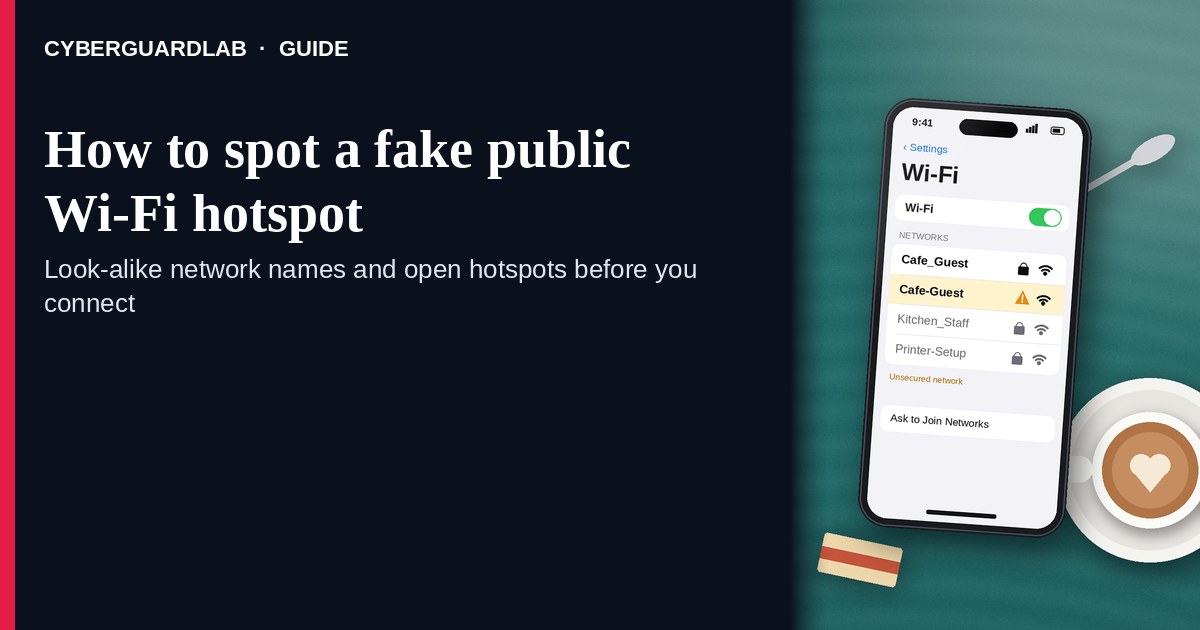
A fake public Wi-Fi hotspot — often called an evil twin — is a look-alike network name (SSID) set up so your phone or laptop joins the attacker’s access point instead of the café, airport, hotel, or library network you meant to use. The FCC’s consumer guidance on wireless connections is blunt: if more than one hotspot seems to belong to the place you are in, check with staff before you connect, turn off auto-join for unknown networks, prefer your cellular data for sensitive tasks, and treat a personal VPN as an optional encryption layer if you use public Wi-Fi often. HTTPS on real sites helps, but it does not make a fake captive portal or a look-alike login page safe. For banking and money apps on public Wi-Fi, read Public Wi-Fi and banking apps before you tap Pay or Transfer. CyberGuardLab is independent. Referral fees may affect product placement on other pages. Using free habits only — staff-confirmed SSID, no auto-join, cellular for money — is a valid outcome. We do not rank VPN brands or invent “safest airport Wi-Fi” scores.
The short answer
Before you join free Wi-Fi in a public place, confirm the exact network name with staff or the venue’s posted instructions; skip look-alikes, turn off auto-join, and keep banking and password changes on cellular data or a network you already trust.
What an evil twin is (plain English)
An evil twin is a Wi-Fi access point that advertises a familiar name so your device prefers it.
Attackers park a travel router, a phone hotspot renamed to “Airport_Free_WiFi,” or a laptop sharing a look-alike SSID near the real network. Your device sees two similar names — or one slightly “better” open network — and you tap the wrong one. Once you are on their radio, they can:
- Present a fake “log in to get internet” page that harvests emails and passwords.
- Watch unencrypted traffic (less common on modern HTTPS sites, still relevant for bad apps or misconfigured pages).
- Push you toward malware downloads or “update required” prompts.
- Sit in the middle of a session if you ignore certificate warnings.
The FCC’s wireless consumer tips call these imposter public Wi-Fi hotspots and tell you to ask staff when names collide. Industry and standards discussions often use the label evil twin for the same idea: an SSID that belongs to someone else, used to lure clients.
This is different from “the café Wi-Fi is just slow” and different from your home router being weak. Home hardening is covered in How to check if your home Wi-Fi is safe and Guest Wi-Fi network at home. This page is about public look-alikes.
Evil twin vs ordinary open hotspot
Not every open network is an evil twin. The risk profile still changes when you cannot prove who runs the radio.
| Situation | What you know | Household habit |
|---|---|---|
| Staff or a printed card gives one exact SSID (and password if any) | Higher confidence it is the venue’s network | Join that name only; still avoid banking if you can use cellular |
| Two almost identical names (“CafeGuest” and “Cafe_Guest_Free”) | Classic imposter pattern (FCC: check with staff) | Ask before joining; prefer cellular until confirmed |
| Open network with no password and no staff confirmation | You do not know who operates it | Treat as untrusted; HTTPS helps on real sites; skip money apps |
| Network that auto-joined while you walked by | Device preference, not your choice | Forget the network; disable auto-join for unknowns (FCC tip) |
| Captive portal asks for Microsoft / Google / bank password “to unlock Wi-Fi” | Credential harvest risk | Back out; use cellular; never reuse those passwords on a portal |
The FTC’s public Wi-Fi consumer material notes that widespread HTTPS has made many day-to-day page loads safer than the old open-Wi-Fi era — and still warns that scammers can run fake sites that also show HTTPS. Encryption to a scammer’s server does not protect you from the scammer. Look for https on real destinations you typed or bookmarked; do not treat a lock icon on a surprise login page as proof the hotspot is honest.
How to spot and avoid a fake public hotspot (US household steps)
Use this checklist in airports, hotels, coffee shops, malls, and conference centers.
- Get the name from the venue, not from the Wi-Fi list alone. Ask the barista, front desk, or gate agent for the exact SSID (and password if there is one). Match letter-for-letter, including spaces, underscores, and “Free” / “Guest” suffixes. If two names look right, the FCC says to check with staff rather than guess.
- Turn off automatic joining for unknown networks. On iPhone and Android, disable auto-join / auto-connect for open or untrusted networks so your phone does not silently prefer a louder evil twin while you walk through a terminal. Forget networks you no longer need.
- Prefer cellular data for money, taxes, and password changes. The FCC notes that using your phone’s data plan instead of Wi-Fi can be more secure when you transmit sensitive information. Bank apps, brokerage, payroll, and “change password” flows belong on cellular or on a network you already trust at home. Details: Public Wi-Fi and banking apps.
- Treat captive portals as untrusted forms. Enter only what the venue truly needs (sometimes an email or room number). Never type your Microsoft, Google, Apple ID, bank, or Social Security number into a “Wi-Fi login” page. If the portal demands a software install or a remote-support tool, leave the network.
- Keep browsing habits boring on public Wi-Fi. Use https sites you recognize. Do not ignore browser certificate warnings. Log out of sensitive sites when finished. The FTC’s older hotspot tips still apply in spirit: do not email card numbers or SSNs over the hotspot “just this once.”
- Optional: a VPN is an encryption layer, not a magic shield. The FCC says that if you use public hotspots regularly, consider a VPN to encrypt traffic between your device and the internet. A VPN does not prove the hotspot operator is honest, does not stop you from typing a password into a fake portal before the VPN connects, and does not replace staff-confirmed SSIDs. We do not rank VPN brands on this page. Employer VPNs for work are a separate policy — follow your IT rules.
- If something already feels wrong, leave and report. Forget the network, switch to cellular, change any password you typed on a portal, and report fraud patterns at ReportFraud.ftc.gov. See How to report a scam to the FTC.
Signs table you can screenshot
| Red flag | Why it is a problem | Do this instead |
|---|---|---|
| Near-duplicate SSID next to the real one | Evil twin / imposter hotspot | Ask staff; join only the confirmed name |
| Stronger signal on a “free” open clone | Attacker closer to you than the real AP | Do not pick by signal bars alone |
| Portal asks for bank or Microsoft password | Credential theft | Cancel; use cellular |
| Certificate warning after you join | Possible interception or fake site | Stop; leave the network |
| Someone nearby asks you to “try this network” or scan a random QR for Wi-Fi | Social engineering onto their AP | Decline; use staff instructions only |
| Hotel “support” calls after you join and asks for remote access | Tech-support crossover scam | Hang up; verify with the front desk in person |
Travel and household extras that stay free
- Carry a small data plan expectation: offline maps and downloaded boarding passes reduce desperation for any open SSID.
- On laptops, forget public networks after the trip so you do not auto-rejoin a clone next time.
- At home, put visitors on a guest network so travel devices that once joined shady SSIDs are less entangled with work PCs — see the guest Wi-Fi guide linked above.
- Update the phone OS and apps; that is hygiene, not a claim that updates detect evil twins by name.
What this page is not
This page does not rank VPNs, airport lounges, or mesh routers, and it does not publish lab scores.
It is not a tutorial for running rogue access points, packet capture, or credential harvesting. It is not a guarantee that cellular data is risk-free (SIM and account phishing still exist). Official consumer guidance stays with the FCC and FTC pages in Sources. Home router passwords and WPA settings belong on the home Wi-Fi safety guide, not here.
If you decide a paid extra is a real job
Most of the protection here is free behavior: confirm the SSID, disable auto-join, keep money on cellular. Pay only if you already named a job a free habit will not cover — for example a household security suite that includes a VPN feature you will actually turn on before public Wi-Fi, or broader device antivirus after a bad download on a hotspot.
- Suite path many US homes already compare: Norton plans (paid link; confirm whether a VPN feature is included and the renewal).
- Independent-test–oriented suite: Bitdefender plans (paid link; confirm extras).
- Household suite starting point: TotalAV plans (paid link).
- Multi-device vendor: McAfee plans (paid link; confirm device limit).
- Another suite some homes use for Wi-Fi-related extras: Avast plans (paid link).
We are not ranking those VPN-in-suite features against each other. Buying nothing and using cellular for sensitive tasks remains valid. Paid links are on-site only.
FAQ
How do I know which airport Wi-Fi name is real?
Ask an airline or airport employee, or use the name printed on official signage. If two similar names appear, the FCC says to check with staff before connecting.
Is open café Wi-Fi always an evil twin?
No. Many venues run real open or password-on-the-receipt networks. An evil twin is a look-alike run by someone else. Confirm the name; still keep banking on cellular when you can.
Does HTTPS mean the hotspot is safe?
HTTPS encrypts data to the site you are talking to. It does not identify who runs the Wi-Fi radio, and it does not make a scammer’s https login page safe. The FTC notes scammers can use encryption too.
Should I use a VPN on public Wi-Fi?
The FCC says to consider a VPN if you use public hotspots regularly. It is optional encryption, not proof the network is legitimate, and it will not save a password you typed into a fake portal. We do not pick a “best VPN” here.
Can I use my bank app on hotel Wi-Fi?
Prefer cellular data for banking when you can. If you must use hotel Wi-Fi, confirm the SSID with the front desk, avoid fake portals that ask for bank passwords, and read Public Wi-Fi and banking apps.
My phone joined a network by itself. What should I do?
Forget that network, disable auto-join for unknowns, and change any password you entered while connected. If you shared financial data on a shady portal, monitor accounts and report at ReportFraud.ftc.gov.